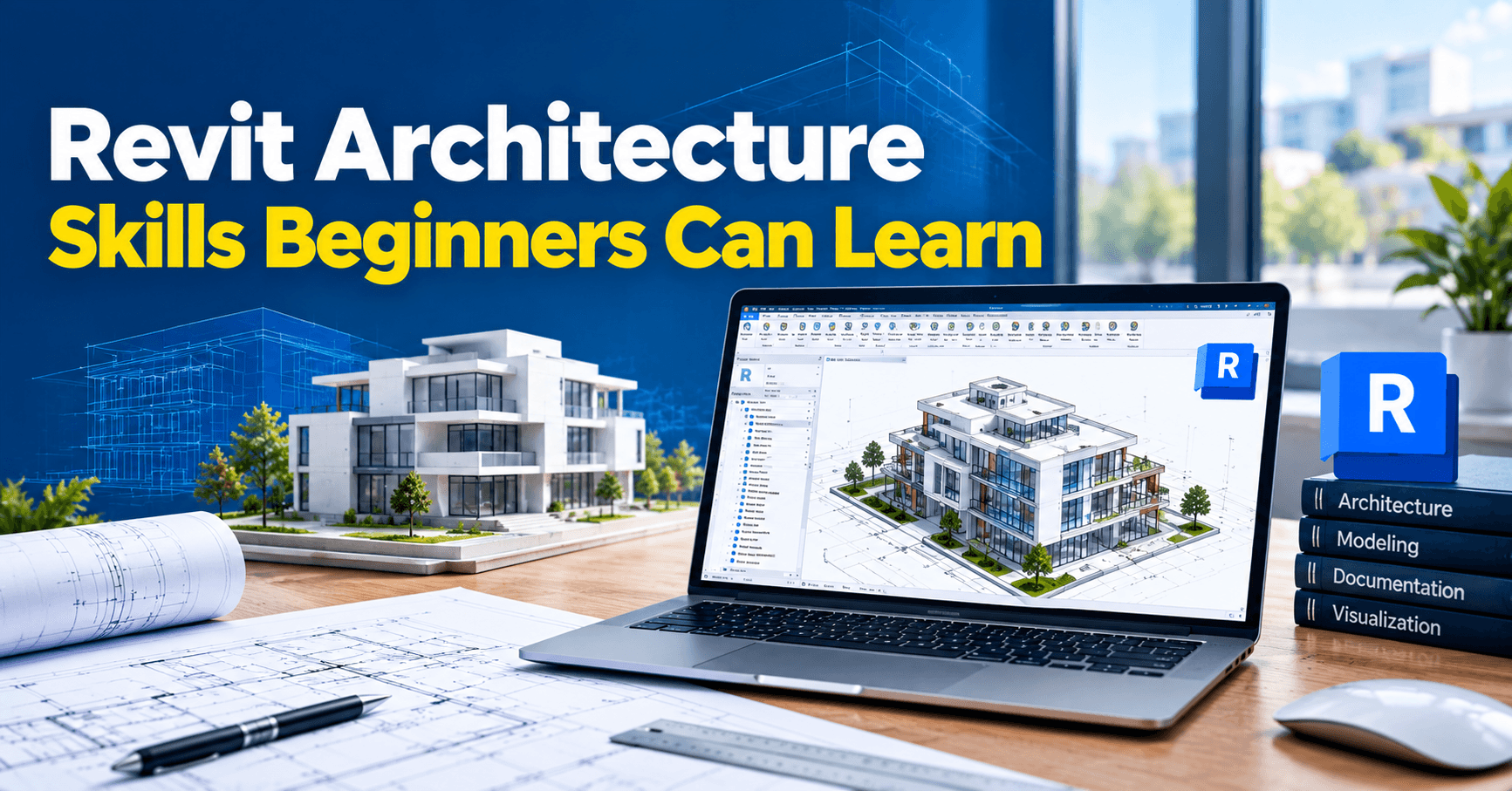
Revit Architecture Skills Beginners Can Learn: A Guide for Hoshiarpur Students
Part 1
Open Revit for the first time and the screen can feel like the cockpit of an aircraft. Tabs across the top, panels on the left, properties on the right, and a blank drawing area in the middle that gives you no hint about where to begin.
Most beginners react in one of two ways. Some click randomly and end up with a wall that won’t move. Others watch ten tutorials, feel more confused than before, and quietly close the software.
There’s a calmer way in. Revit Architecture isn’t one giant skill. It’s a set of smaller skills, and each one can be learned, practiced and tested on its own. This guide walks through those skills in the order that makes learning easier, so you know exactly what to work on next.
What “Revit Architecture” Actually Means
Revit is software from Autodesk for designing buildings, and the architecture side of it focuses on the parts architects care about most: walls, floors, doors, windows, roofs, stairs, rooms and the drawings that come from them.
Instead of drawing lines, you build a digital model of the building from real elements. Each element knows what it is. A wall knows its height and thickness. A door knows which wall it sits in. From that one model, you create plans, sections, elevations, schedules and 3D views.
If you’ve read about how Revit supports the wider design process, think of this guide as the practical next step. Here, the question isn’t what Revit does. It’s what you, as a beginner, can start learning and practicing right away.
Before You Start: What You Need
You don’t need much to begin, but a few things make the early weeks smoother.
A computer that can handle it. Revit is demanding software. A reasonably modern computer with a good amount of memory and a decent processor helps a lot, because slow performance can make learning frustrating. If you’re unsure, check the current system requirements on Autodesk’s website before installing.
Basic drawing knowledge. You don’t have to be an architect, but it helps to know what a plan, a section and an elevation are, and to be comfortable reading measurements and scale.
A small project in mind. Learning is far easier when you’re building something specific, like your own house or a simple shop, than when you’re following random exercises.
Skill 1: Finding Your Way Around the Interface
Your first skill is simply feeling at home on the screen. The main areas to recognize are:
The ribbon at the top, where the tools are grouped into tabs like Architecture, Structure and Insert
The Project Browser on the left, which lists all your views, sheets and schedules
The Properties panel, which shows the settings of whatever you’ve selected
The drawing area, where you build and view the model
The View Control Bar at the bottom, which controls how each view looks
Spend your first sessions just clicking around, opening different views and noticing how the Properties panel changes when you select different objects. It’s a small habit, but it makes everything afterward faster.
Skill 2: Setting Up a Project Properly
A good project starts with a good setup. Revit asks you to choose a template when you begin, and that choice decides your default units, line styles and views.
Learn to pick a suitable architectural template, confirm that your units match how you plan to work, and save your project with a clear file name. It sounds like housekeeping, but beginners who skip it often run into problems later, such as dimensions showing in the wrong units or views that look different from what they expected.
Skill 3: Creating Levels and Grids
Before drawing walls, you set up the skeleton of the project. Levels represent floors, such as ground floor, first floor and roof. Grids are reference lines that help organize the layout, especially the structure.
Think of levels as the floors of a building and grids as the lines you’d mark on the ground before construction. When you set these up first, everything else lines up naturally. When you skip them, floors drift, views get confusing and edits become painful.
A good beginner exercise is to create two levels with a realistic floor-to-floor height and a small grid of four or six lines, then look at how they appear in the elevation views.
Skill 4: Drawing Walls With Intention
Walls are usually the first real building element you’ll place. The important lesson isn’t how to click and drag. It’s that every wall has a type (what it’s made of and how thick it is) and a set of properties (its height, base level and so on).
Practice drawing a simple rectangular room using a basic wall type. Then change the wall type and watch the thickness update. Try adjusting the wall height and see how it affects the 3D view. Doing this teaches you that you’re editing a smart object, not redrawing a line.
Also get comfortable with the basic editing tools: moving, copying, aligning, trimming and mirroring walls. These come up constantly in real work.
Skill 5: Adding Doors and Windows
Doors and windows are placed into walls, and that relationship is what makes them smart. Move the wall and the door moves with it. Change the door type and the opening adjusts.
As a beginner, practice placing a few doors and windows, then change their types, swing direction and positions. Notice how they appear in the plan, the elevation and the 3D view at the same time. It’s a small moment, but this is often when the idea of a connected model finally clicks.
A Common Doubt: “Do I Need to Know AutoCAD First?”
This question comes up all the time, and the honest answer is no. Knowing AutoCAD can help, because you’ll already understand plans, scale and dimensions. But it isn’t a requirement, and in some ways you can learn Revit more easily without the habit of thinking in lines.
If you do know AutoCAD, just remember that Revit asks you to think differently. You’re not drawing a wall as two lines. You’re placing a wall as an object. Keeping that shift in mind will save you a lot of confusion.
Why This Matters for Students in Hoshiarpur
Building and renovation work continues steadily around Hoshiarpur, and more clients now expect to see a 3D version of their project before construction. Students who can set up a model, build walls, doors and windows, and produce clean views have a practical edge in architecture, civil and interior design work. Starting with these first five skills gives you a real foundation to build on.
Part 2
Skill 6: Building Floors, Roofs and Ceilings
Once your walls are in place, the building needs something to stand on and something to keep the rain out. Floors, roofs and ceilings work as sketch-based elements. You outline the shape, usually by picking walls or drawing the boundary, and Revit fills it in.
Start with a floor. Pick a floor type, select your walls and watch the slab appear. Then try a simple flat roof, followed by a sloped one. Roofs are where beginners often hit their first real puzzle, because the slope, overhang and boundary all interact. Don’t worry if your first roof looks odd. Change one setting at a time and watch what happens, and the logic becomes clearer.
Skill 7: Placing Stairs, Railings and Ramps
Stairs are one of the most satisfying and one of the trickiest early skills. Revit asks for details such as the height between levels, the riser height and the tread depth, and then builds the stair for you.
Treat this as a chance to learn practical design as well as software. A stair that looks fine on screen can be uncomfortable in real life if the proportions are wrong. Look up the standard riser and tread dimensions used in your area, and check that your stair fits the space available. Railings and ramps follow similar logic, so once stairs make sense, the others come easier.
Skill 8: Creating and Controlling Views
This is the skill that turns a model into drawings. From the same building, you can create floor plans, ceiling plans, sections, elevations and 3D views.
The key idea is that each view is a different window onto the same model. Learn to do three things well:
Create sections and elevations by drawing a section line or using the built-in elevation markers
Control scale and detail level, so a view looks right for its purpose
Manage visibility, deciding which elements appear in each view
Beginners are often confused when something “disappears” from a view. Nine times out of ten, it’s a visibility setting, not a deleted object. Learning where to look saves a lot of worry.
Skill 9: Adding Dimensions, Tags and Text
A drawing without information isn’t much use on site. Revit lets you add dimensions, room names, door and window tags, and notes directly onto your views.
What makes this special is that many of these annotations stay linked to the model. If you change a door type, its tag updates. If you move a wall, the dimension follows. Practice annotating a simple plan neatly. Clear, readable drawings are a sign of a careful designer, and employers notice them.
Skill 10: Working With Rooms and Schedules
Rooms in Revit are not just names on a plan. They hold information such as area, and you can use them to produce room schedules automatically. Schedules are tables that list items from your model, such as doors, windows or rooms, and they update whenever the model changes.
Try creating a door schedule for your practice project. Then change a door size in the plan and watch the schedule update. This is often the moment beginners realize why model-based design saves so much time, because counting and listing items by hand is no longer necessary.
Skill 11: Understanding Families
A family is a reusable building element, such as a door, a window, a bed or a light fitting. Almost everything you place in Revit belongs to a family, and understanding this unlocks the software.
As a beginner, you don’t need to create complex families. Start by loading ready-made ones, changing their types and sizes, and noticing how they behave. Later, try making a simple custom family, such as a basic table or a shelf. Be careful with families downloaded from random sources, since poorly made ones can slow your model and cause errors.
Skill 12: Preparing Sheets and Printing
Finished views are placed on sheets, which are the pages you print or export as PDF. Each sheet has a title block with details like the project name, sheet number and date.
Learn to create a sheet, drag views onto it, adjust scales and add a title block. A neat sheet set is what clients and contractors actually receive, so this skill is worth practicing early. It also gives you a satisfying finish to a project, since you can see all your work laid out as a proper drawing set.
Skill 13: Basic Visualization
Revit can produce 3D views and rendered images that help clients picture the design. At beginner level, aim for simple goals: set up a clean 3D view, apply basic materials to walls and floors, and create a few presentable images.
You don’t need to become a visualization expert. Even basic materials and a good camera angle make your work easier to understand and more impressive in a portfolio.
Common Mistakes Beginners Make
Mistake 1: Drawing before setting up levels and grids
Skipping this step leads to a messy model that’s hard to edit. Always set up the skeleton first.
Mistake 2: Using lines instead of building elements
If you find yourself drawing lines to represent walls, stop. Use real walls, floors and doors so the model stays intelligent.
Mistake 3: Making the model too detailed too early
Tiny details early on slow the model and distract from the main design. Start simple and add detail later.
Mistake 4: Forgetting to check the 3D view
A plan can look perfect while the 3D view reveals a wall that doesn’t meet the roof. Check 3D often.
Mistake 5: Not saving regularly
Revit files can be large, and a crash can cost you hours. Save often and keep backups.
Mistake 6: Following tutorials without building your own project
Copying steps doesn’t build understanding. Apply each skill to your own small project.
Is This Suitable for Complete Beginners?
Yes. Revit has a real learning curve, but every skill in this list can be learned step by step. You don’t need prior design experience. Basic comfort with plans, measurements and a computer is enough to begin. Patience matters more than talent, especially in the first few weeks.
Do You Need Previous Experience?
No formal experience is required. Students from civil, architecture, interior design and even unrelated backgrounds can learn Revit with regular practice. If you already know AutoCAD, you’ll find the drawing concepts familiar. If you don’t, a little extra time on basic drawing terms will help.
What Should You Learn First?
Here is a sensible order for beginners:
The interface and project setup
Levels and grids
Walls
Doors and windows
Floors, roofs and ceilings
Stairs and railings
Views, sections and elevations
Dimensions, tags and text
Rooms and schedules
Families
Sheets and printing
Basic visualization
This order lets you build a complete small project from start to finish, which is the best way to make the skills stick.
Part 3
How These Skills Show Up in Real Work Around Hoshiarpur
Let’s picture a young designer at a small architecture or interior design office in Hoshiarpur. A client wants a two-storey house on a modest plot. The senior architect sketches the layout and hands it over with a simple request: “Build this as a model and give me the plans, a couple of sections and a door and window schedule by Friday.”
For someone who has practiced the skills in this guide, the week goes smoothly. Levels and grids go in first. Walls, doors and windows follow. Floors, the roof and the stair are added, views are created, dimensions are placed, and the schedules appear almost on their own. When the client asks to shift a bedroom wall, the change is made once and the drawings update together.
For someone who only watched tutorials without building anything, the same week can feel stressful, with confusing views and elements that refuse to behave. The difference isn’t intelligence. It’s hands-on practice with a complete project.
How much any local office uses Revit varies. Some work mainly in AutoCAD, and others are moving toward model-based work as clients ask for more 3D. Either way, being able to work in both gives you more options.
How Difficult Is It, Really?
Let’s be honest. Revit is one of the more demanding beginner tools you’ll come across. It has many features, its own vocabulary and a way of working that’s very different from simple drawing software.
The first few weeks are usually the hardest. You’ll deal with new terms like families, types and view templates, and you’ll sometimes feel that Revit is doing things behind your back. A wall might join another wall unexpectedly. An element might vanish from a view. A roof might refuse to take the shape you want.
Most of these moments have a logical explanation, and once you learn to look in the right place, they stop being scary. The usual spots are the Properties panel, the view’s visibility settings and the type of the element you selected.
Progress tends to come in jumps. A concept that confused you for days suddenly clicks, and then the next three skills feel easier. If you’re stuck, step back, simplify the task and rebuild it in smaller pieces.
A Simple Four-Week Practice Plan
If you want a structure, try this one. It assumes about thirty to sixty minutes of practice on most days.
Week 1: Setup and basic elements
Learn the interface, set up a project, create levels and grids, and draw walls for a simple one-room building. Add one door and two windows.
Week 2: Completing the building
Add floors, a roof and a ceiling. Build a small stair to a second level. Check your work in 3D regularly.
Week 3: Turning the model into drawings
Create plan views, two sections and four elevations. Add dimensions, tags and room names. Make a door schedule and a room schedule.
Week 4: Presentation and polish
Arrange your views on sheets, add a title block and print or export a PDF. Apply simple materials and create two or three 3D views you’d be happy to show someone.
By the end, you’d have a complete small project and a short portfolio piece. Adjust the pace to suit you. If a week takes two, that’s fine.
Do You Need Previous Experience?
No formal experience is needed. What matters is practice, patience and curiosity about how buildings are put together. If you’re coming from civil engineering, architecture or interior design, many ideas will already feel familiar. If you’re from another stream, you can still learn it, but spend a bit more time on basic building terms, such as the difference between a plan, a section and an elevation.
What Can You Do After Learning These Skills?
Once you’re comfortable with the skills in this guide, several directions open up:
Junior architectural or BIM assistant roles, helping build models and prepare drawing sets
Draftsman or CAD technician positions, especially in offices that combine AutoCAD and Revit
Interior design support, producing accurate layouts and 3D views for clients
Civil and construction support roles, assisting with building models and documentation
Freelance modelling and drawing work, for local architects, builders and home owners
Further learning, such as advanced BIM, structural or MEP modelling and visualization tools
None of these are guaranteed, and outcomes depend on your skills, your portfolio and the opportunities available. But a working knowledge of Revit, supported by real project samples, gives you something concrete to show.
Will These Skills Actually Help Your Career?
For architecture, civil and interior design paths, they can. Many employers list Revit or BIM among the skills they want for design and drafting roles, and the industry has been moving toward model-based work for years.
They also help you think better as a designer. Building a model forces you to deal with how things connect: how a wall meets a floor, how a roof sits on the structure, how a stair fits between levels. That understanding stays with you even if the software changes.
One honest caution: Revit alone won’t make you a good designer. Employers care about sound judgment, clear drawings and a feel for buildings as much as software skills. Keep building your design fundamentals alongside the tool.
How to Build a Beginner Portfolio
A small portfolio can help you in interviews and when approaching freelance clients. You don’t need many projects. Two or three clear ones are enough.
Choose projects you can finish well, such as a small house, a shop interior or a single-room extension. For each, include a floor plan, a section, an elevation, one or two 3D views and a sheet. Add a short note about what the project was and what you learned. Keep the presentation neat, because clean drawings say a lot about your attention to detail.
A Few Honest Thoughts Before You Go
If there’s one idea to take from this guide, it’s that Revit is learnable when you break it into skills and practice them on a real project. Levels and grids, walls, doors and windows, floors and roofs, views, annotation, schedules, families and sheets are each manageable on their own. Together, they make you a capable beginner.
Don’t try to learn everything at once. Finish a small project, then build a slightly bigger one. Expect to be confused at times, and treat that as part of the process, not as proof you’re not cut out for it.
You also don’t need to be perfect. Everyone who now works comfortably in Revit once placed a wall in the wrong spot and couldn’t understand why it wouldn’t move. They kept going, and so can you.
For students in Hoshiarpur interested in architecture, civil engineering or interior design, Revit Architecture is a worthwhile skill to start building. Begin with a simple model, practice a little each day, and let your confidence grow one project at a time.
Comments
Nothing here yet. Be the first to say something.