next
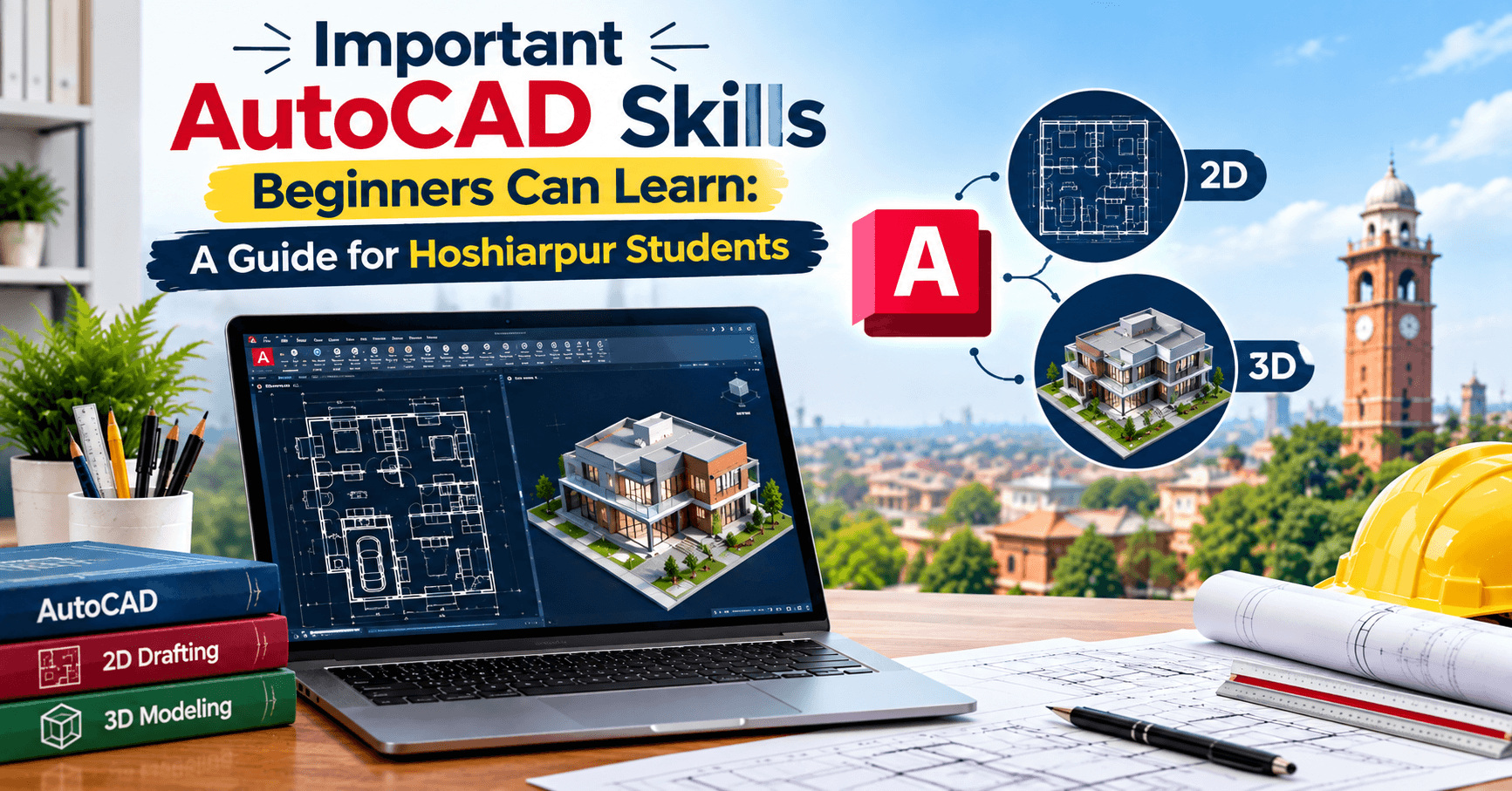
Important AutoCAD Skills Beginners Can Learn: A Guide for Hoshiarpur Students
Part 1
Open any AutoCAD tutorial playlist online and you'll find hundreds of videos, covering everything from basic lines to complex 3D rendering techniques. For a complete beginner, this is overwhelming. Where do you even start? Which skills actually matter in a real job, and which ones can wait until later?
This guide exists to answer exactly that question, cutting through the noise to focus on what genuinely matters when you're just starting out, especially if you're a student in Hoshiarpur trying to figure out the most practical path into AutoCAD.
Why Knowing "What to Learn First" Actually Matters
A lot of beginners waste weeks jumping between random tutorials, learning an advanced rendering technique one day and a basic drawing command the next, without any real structure. This scattered approach often leaves gaps in fundamental skills while creating a false sense of progress.
Think of it like building a house. You wouldn't install the windows before the walls are up, even if windows seem more exciting to work on. Skills in AutoCAD build on each other in a similar way. Getting the fundamentals genuinely solid first makes everything that comes afterward noticeably easier to learn and apply.
Skill 1: Getting Comfortable With the Interface
Before drawing anything meaningful, you need to feel at home in the AutoCAD workspace itself. This includes understanding the command line, where you type or see commands being executed, the ribbon or toolbar, where common tools are organized, and the drawing area, where your actual design takes shape.
Beginners often feel intimidated by the sheer number of icons and panels visible on screen. A practical starting point is learning to recognize just the tools you'll use constantly at first, rather than trying to understand every single icon immediately. Comfort with the interface develops naturally once you start actually drawing regularly.
Skill 2: Basic Drawing Commands
These are the absolute building blocks of every AutoCAD drawing, and they deserve genuine repetition until they feel automatic.
Line lets you draw straight segments, the most basic and most frequently used tool in any drawing. Circle and Arc create curved shapes, essential for anything from pipes to rounded architectural features. Rectangle and Polygon quickly create common shapes without drawing them line by line.
Practicing these commands on simple shapes, even something as basic as drawing a floor plan outline of your own room, builds the muscle memory that makes everything else feel smoother later.
Skill 3: Precision Input and Object Snaps
This is where AutoCAD genuinely separates itself from casual drawing tools, and it's a skill beginners sometimes underestimate early on.
Precision input lets you type exact coordinates or distances instead of guessing visually where to click. Object snaps, often called "osnaps," let you snap precisely to specific points on existing objects, like the endpoint of a line or the center of a circle, ensuring your new drawing connects exactly where it should.
Skipping this skill and relying purely on visual estimation creates drawings that look roughly right on screen but are actually inaccurate, a problem that becomes serious the moment a drawing needs to be used for real construction or manufacturing.
Skill 4: Basic Editing Commands
Drawing something perfectly on the first attempt rarely happens, even for experienced professionals. This is why editing commands matter just as much as drawing commands.
Move and Copy reposition or duplicate objects. Trim and Extend adjust lines to meet exactly where needed. Mirror creates a reflected copy, useful for symmetrical designs. Offset creates a parallel copy at a specific distance, commonly used for wall thickness or repeated patterns.
Learning these commands well means you can adjust and refine a drawing efficiently, rather than deleting and redrawing elements from scratch every time something needs to change.
Skill 5: Understanding and Using Layers
Layers organize different parts of a drawing into separate, manageable groups, walls on one layer, furniture on another, dimensions on a third, for example. Each layer can have its own color, line type, and visibility settings, making complex drawings far easier to read and manage.
Beginners sometimes skip proper layer organization early on, drawing everything on a single default layer because it feels simpler initially. This quickly becomes a problem as drawings grow more complex, making it difficult to isolate, edit, or even clearly see specific parts of a design.
A Common Doubt: "Do I Need to Learn Every Single Command?"
This worry stops a lot of beginners from starting confidently. Here's the honest, reassuring answer: no, you don't need to learn every command AutoCAD offers. Professional AutoCAD users regularly rely on a core set of maybe twenty to thirty commands for the vast majority of their everyday work.
Think of it like learning a language. You don't need to know every word in the dictionary to communicate effectively. You need a solid, practical vocabulary that covers most everyday situations, with the ability to look up or learn additional words as specific needs arise. The same applies here. Focus on building fluency with the core commands first.
Why This Matters for Students in Hoshiarpur
If you're exploring a career involving architecture, civil engineering, interior design, or drafting, strong fundamentals in these core AutoCAD skills genuinely matter more than knowing obscure, rarely-used features. Local firms and businesses need people who can draw accurately and efficiently using the tools that get used constantly, not someone who knows one impressive advanced feature but struggles with everyday precision work.
Building genuine comfort with these foundational skills first creates a strong base that makes learning more advanced features, like 3D modeling or complex annotation systems, feel like a natural next step rather than an overwhelming leap.
Skill 6: Dimensioning and Annotation
A drawing without clear measurements and labels isn't genuinely useful to the people who need to build from it. Dimensioning tools let you add accurate measurements to your drawing, lengths, angles, radii, so anyone reading it understands the exact size of every element.
Annotation goes a step further, adding text labels, notes, and callouts that explain specific details a measurement alone can't communicate, like material specifications or construction notes. Beginners sometimes treat this as an afterthought, focusing heavily on getting the visual shapes right while rushing through dimensioning at the end. In real projects, clear, accurate dimensioning is often just as important as the drawing itself, since contractors and fabricators rely on these exact numbers to build correctly.
Skill 7: Working With Blocks
A block is a reusable collection of objects grouped together, like a door symbol, a window, or a piece of furniture, that can be inserted repeatedly into a drawing without redrawing it every time. If you're working on a building with twenty identical windows, you create the window symbol once as a block, then insert it wherever needed.
Beyond saving time, blocks help maintain consistency across a drawing. If you later need to update the design of that window, editing the block updates every instance of it throughout the drawing automatically. This becomes incredibly valuable once you're working on larger, more detailed projects where manually updating dozens of repeated elements would be impractical.
Skill 8: Layouts and Printing Setup
Many beginners focus entirely on the drawing itself and forget that, eventually, most technical drawings need to be printed or exported clearly, often at a specific scale, for use on an actual construction site or for client review.
Learning to set up a proper layout, including title blocks, borders, and correctly scaled viewports, ensures your final printed or exported drawing looks professional and communicates information clearly. A beautifully drawn design that prints incorrectly, with illegible text or an incorrect scale, undermines all the careful work that went into creating it.
Skill 9: Basic 3D Modeling
Once your 2D fundamentals feel genuinely solid, introducing basic 3D modeling adds real value to your skill set. This includes creating simple solid shapes, extruding 2D profiles into three-dimensional forms, and learning to navigate and view your model from different angles.
Beginners don't need to master advanced 3D rendering immediately. Understanding how to build basic 3D shapes and visualize a design in three dimensions is often enough to add significant value, particularly for client presentations where a 3D view communicates a design far more intuitively than a flat 2D drawing alone.
Skill 10: File Management and Organization
This skill rarely gets mentioned in typical tutorials, but it matters immensely in real, ongoing work. Learning to name files clearly, organize project folders logically, and understand how to reference or combine multiple drawing files properly prevents the confusion and wasted time that comes from messy, poorly organized project files.
As you start working on real projects, whether for coursework, an internship, or freelance work, this organizational habit becomes just as important as your actual drawing skills, especially once you're juggling multiple projects or revisions simultaneously.
How These Skills Work Together in a Real Project
It's worth pausing to see how these individual skills combine into an actual workflow, rather than existing as isolated, separate lessons.
Imagine drafting a simple house floor plan. You'd start with basic drawing commands to lay out the walls, using precision input to ensure exact measurements. Editing commands help you adjust and refine the layout as the design develops. Layers keep walls, electrical details, and furniture organized separately. Blocks let you quickly insert doors, windows, and furniture symbols without redrawing them each time. Dimensioning adds the exact measurements a builder would need. Finally, a proper layout setup ensures the drawing prints clearly and professionally when it's time to share it with a client or contractor.
Notice how none of these skills work in true isolation. They support and depend on each other throughout a real project, which is exactly why building a solid foundation across all of them, rather than becoming excellent at just one, creates genuine, practical competence.
Common Mistakes Beginners Make While Learning These Skills
Mistake 1: Rushing to advanced features too early
It's tempting to jump straight into impressive 3D rendering or advanced customization, skipping past the "boring" fundamentals. This often creates shaky foundations that cause confusion and frustration later, once real projects demand solid, reliable basic skills.
Mistake 2: Practicing commands in isolation without real projects
Learning a command through a short tutorial exercise feels productive, but it rarely builds genuine skill unless you apply it within an actual, practical drawing, like a real room layout or a small building plan.
Mistake 3: Neglecting precision from the start
Some beginners draw roughly at first, planning to "clean it up later." This habit is hard to break and often leads to accumulated inaccuracies that are far more difficult to fix after the fact than if precision had been maintained from the beginning.
Mistake 4: Ignoring layers and organization until drawings become unmanageable
Beginners sometimes delay learning proper layer organization, assuming it's unnecessary for "simple" drawings. This habit quickly becomes a serious problem the moment drawings grow even slightly more complex.
Is This Suitable for Complete Beginners?
Yes, absolutely. These ten skills are specifically chosen because they represent a genuinely beginner-friendly starting point, without requiring any prior drafting, engineering, or design experience. Each skill builds logically on the ones before it, creating a clear, manageable learning path rather than an overwhelming list of unrelated topics.
What matters most is consistent, hands-on practice with real, practical drawings, rather than passively watching tutorials without actually applying what you've learned.
What Should You Learn First?
Based on everything covered so far, here's the practical order worth following:
Interface familiarity, getting comfortable navigating the AutoCAD workspace
Basic drawing commands, lines, circles, rectangles, and similar shapes
Precision input and object snaps, ensuring accuracy from the start
Basic editing commands, move, copy, trim, extend, mirror, offset
Layers, keeping drawings organized and manageable
Dimensioning and annotation, clearly communicating measurements and details
Blocks, speeding up repeated design elements
Layouts and printing setup, preparing drawings for professional sharing
Basic 3D modeling, adding depth and better visualization
File management, maintaining organized, professional project files
This order prioritizes building genuine, job-ready fundamentals before moving into more specialized or advanced techniques.
How These Skills Apply to Real Opportunities in Hoshiarpur
Local architecture firms, civil contractors, and interior designers around Hoshiarpur consistently need people who can handle exactly these foundational skills reliably. A client needing a house floor plan, a contractor needing an accurate site layout, or an interior designer needing a furniture plan, all of these everyday, practical needs depend on the core skills covered in this guide, not obscure, rarely-used advanced features.
This is genuinely good news for beginners. You don't need years of experience or an extensive, advanced skill set to start contributing real, useful work. Solid fundamentals, applied consistently and accurately, are often exactly what local firms and independent professionals are looking for when hiring junior drafters or project assistants.
How Difficult Is It, Really?
Let's be honest instead of overly encouraging. Some of these skills, particularly precision input and proper layer organization, take genuine repetition before they become second nature. It's common to understand a concept in theory during a lesson, then feel slightly confused again the first few times you try applying it independently on a real drawing.
This is a normal part of the learning process, not a sign that you're struggling more than you should be. Most students find that after consistently practicing these ten skills across a few real, practical projects, even outside formal coursework, their speed and confidence improve substantially. The first few weeks often feel the slowest, but progress tends to accelerate noticeably once the fundamentals genuinely settle in.
Do You Need Previous Experience?
No prior drafting or technical design experience is required to start learning these skills. Students from various academic backgrounds, including those without a strong engineering or architecture foundation, can genuinely build solid AutoCAD skills through consistent, hands-on practice.
What helps most is patience during the initial learning phase, along with a genuine willingness to practice on real, practical drawings rather than relying solely on passive tutorial watching. Spatial thinking and attention to detail tend to improve naturally with repeated, hands-on practice, even for students who don't feel particularly confident with these qualities at the start.
What Can You Actually Do After Mastering These Skills?
Once you've built genuine comfort with these ten foundational skills, several practical directions open up:
Entry-level CAD drafter roles, working within architecture firms, engineering companies, or construction businesses on real, everyday drawing tasks
Freelance drafting work, offering basic AutoCAD drawing services to local architects, contractors, or interior designers around Hoshiarpur
Supporting interior design projects, creating accurate room layouts and furniture plans
Further specialization, moving into more advanced 3D modeling, rendering, or specialized industry-specific AutoCAD applications
A stronger foundation for related software, since many other CAD and design programs share similar underlying logic, making them easier to pick up once these fundamentals are solid
Notice that these foundational skills alone, applied consistently and accurately, already open up genuine, practical opportunities, well before you need to pursue more advanced or specialized training.
Will This Skill Actually Help Your Career?
Yes, genuinely so. These foundational AutoCAD skills form the backbone of countless real, everyday projects across architecture, civil engineering, interior design, and manufacturing. Businesses consistently need people who can reliably handle these core tasks accurately and efficiently, regardless of which specific industry they work in.
Building genuine fluency with these fundamentals also makes you considerably more adaptable. Advanced features and specialized applications continue evolving, but these core skills remain the consistent foundation that every AutoCAD professional relies on, regardless of which specific direction their career eventually takes.
A Few Honest Thoughts to Wrap This Up
If you take away just one thing from this guide, let it be this: you don't need to learn everything AutoCAD offers to start building a genuinely useful, practical skill set. These ten foundational skills, learned thoroughly and practiced consistently, cover the vast majority of what real, everyday professional work actually requires.
Resist the urge to rush toward advanced features before these basics feel genuinely comfortable. Practice on real, practical drawings, even simple ones like your own room layout or a small building plan, rather than only following tutorials passively.
For students in Hoshiarpur starting their AutoCAD journey, focusing patiently on these foundational skills first creates a genuinely solid, practical base, one that opens real opportunities locally while also preparing you well for more advanced learning down the road.
Comments
Nothing here yet. Be the first to say something.