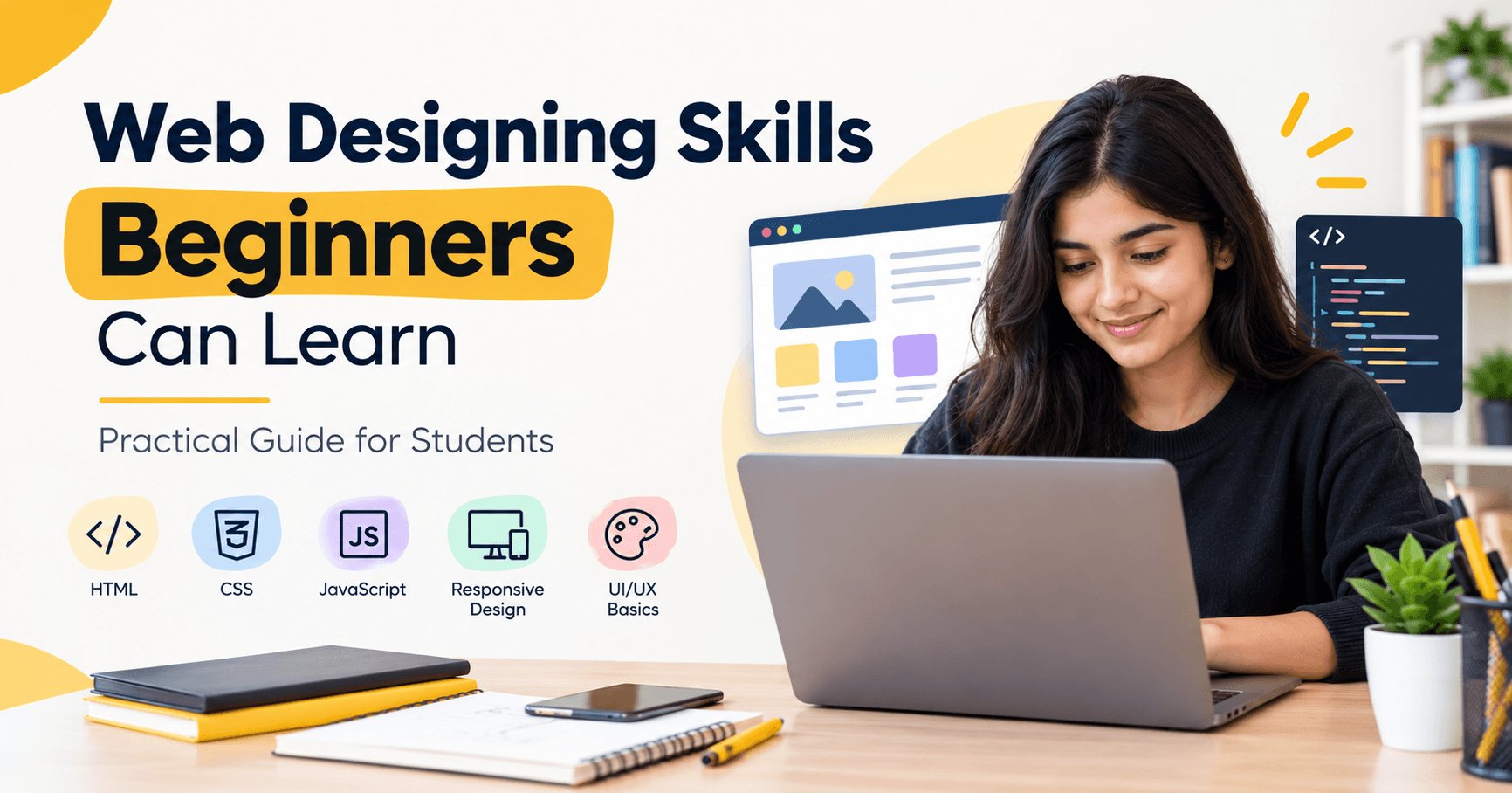
Web Designing Skills Beginners Can Learn
Let's start with a thought a lot of students have but rarely say out loud: "I like the idea of web design, but I have no idea where to start."
Maybe you've been scrolling through a website, noticed how smooth it felt, and wondered who made it. Maybe a cousin or senior from college now works as a designer and you're curious how they got there. Or maybe you're a Class 12 student in Hoshiarpur, or a graduate figuring out your next step, and someone told you, "Learn web designing, it has scope."
Scope is great. But scope doesn't tell you what to actually learn on day one. So let's talk about that honestly, step by step, without making it sound harder or easier than it is.
First, what does a web designer actually do?
Many beginners think web designing means "making websites using some software." That's partly true, but it misses the real picture.
A web designer decides how a website looks and how it feels to use. Where does the menu go? Which button should a visitor notice first? Is the text comfortable to read on a phone? Does the page feel trustworthy, or does it look like something from 2008?
Some designers also write the code that brings these ideas to life. Others focus mainly on the visual side and hand over designs to developers. As a beginner, you don't need to choose right now. You'll learn a bit of everything first, and your interest will naturally pull you in one direction.
"Is this suitable for beginners?"
Yes. Web design is one of the friendlier fields to enter because you can see your progress. Change a colour, and the page changes. Move a block, and the layout shifts. That instant feedback keeps you motivated, especially in the first few weeks when everything feels new.
You also don't need a computer science background. Students from arts, commerce, science and even non-college backgrounds learn this skill. What you need is curiosity, patience and the willingness to practise.
"Do I need to be good at drawing?"
No. This is probably the most common worry, and it's mostly a myth. Web design isn't about sketching beautiful illustrations. It's about arranging things clearly: text, images, buttons and spacing. If you can tell that a messy notice board looks worse than a tidy one, you already have the instinct. The rest can be learned.
Skill 1: Understanding how a website actually works
Before touching any tool, spend a little time understanding what a website is made of. You don't need to go deep, but a basic picture helps everything else make sense.
A website is built mainly from three things:
Structure, the content and its order (headings, paragraphs, images, buttons)
Style, how that content looks (colours, fonts, spacing)
Behaviour, how it responds when someone clicks, scrolls or types
Think of a house. The structure is the walls and rooms, the style is paint and furniture, and the behaviour is the switches, doors and taps that make it usable. Once you see websites this way, the technical terms you'll meet later stop feeling like a foreign language.
It also helps to know a few simple terms: what a domain is, what hosting means, and what a browser does. Ten minutes on each is plenty at this stage.
Skill 2: Layout and visual hierarchy
If there's one design skill that separates a decent beginner from a confused one, it's layout.
Layout is simply how you place things on a page. And the idea behind good layout is visual hierarchy, which means guiding the visitor's eyes to what matters most, in the right order.
Here's an easy way to practise. Open any website you like and squint at it so the details blur. What stands out first? Usually it's a big heading or a bright button. That's hierarchy at work. The designer decided that this one thing should be noticed before everything else.
As you start learning, keep a few simple habits in mind:
Give the most important thing the most space or the strongest contrast.
Group related items close together so they feel connected.
Leave breathing room around elements. Crowded pages tire people out.
Keep things aligned. Misaligned elements feel careless even when visitors can't say why.
A common beginner mistake is trying to fill every empty space because it feels "wasted." It isn't. White space (the empty area around your content) is what makes a page feel clean and professional. Some of the best-looking websites are mostly empty space with a few well-chosen elements.
Skill 3: Choosing colours that work together
Colour is the fun part, and also where beginners get into trouble. When you first discover how many colours you can use, it's tempting to use all of them.
Don't. A reliable starting point is the idea of a simple palette:
One main colour that represents the brand
One supporting colour that works alongside it
A neutral (white, light grey or dark grey) for backgrounds and text
One accent colour reserved for buttons and key actions
Notice how many popular websites follow this pattern, even if you've never consciously spotted it. The accent colour is usually the "Sign up" or "Buy now" button, and it stands out precisely because nothing else on the page is shouting.
Also learn one practical thing early: contrast. Light grey text on a white background might look elegant on your laptop, but it's painful to read on a phone in bright sunlight. Readable beats trendy every time.
You don't have to invent palettes from scratch either. Free colour tools let you explore combinations, and studying how real brands pair colours is a great way to train your eye.
Skill 4: Typography, or choosing fonts without overthinking it
Fonts do more work than most beginners realise. The right font makes a page feel calm and readable. The wrong one makes visitors leave without knowing why.
Here's the good news: you don't need a huge collection of fonts. In fact, fewer is better.
Use two fonts at most. One for headings, one for body text. Many good designs use just one font family in different weights.
Make body text comfortable. Around 16px is a sensible minimum on most websites.
Give lines some room. A little extra space between lines (called line height) makes paragraphs far easier on the eyes.
Keep headings clearly bigger than body text, so people can scan the page quickly.
Think about how you read on your phone. You rarely read every word. You glance at headings, pick up a few lines, and decide whether the page is worth your time. Good typography supports that habit instead of fighting it.
A mistake beginners often make is picking a fancy script font for everything because it looks stylish in a small preview. Then a full paragraph appears in that font and nobody can read it. Save decorative fonts, if you use them at all, for one short heading.
Skill 5: Basic HTML, the skeleton of every page
Now we reach the part that makes some students nervous: code.
Take a breath. HTML is not programming in the scary sense. It doesn't involve logic puzzles or complicated maths. It's a way of labelling content so the browser knows what each piece is. This is a heading. This is a paragraph. This is an image. This is a link.
For a beginner, the most useful HTML skills to learn first are:
Headings and paragraphs
Links and images
Lists
Basic page structure (header, main content, footer)
Simple forms, like a contact form
You can build a decent one-page website with only these. And the moment you open your first self-made page in a browser, something clicks. It's honestly one of the most satisfying moments in learning this skill.
What should you learn first? HTML, before almost anything else on the coding side. Everything else sits on top of it.
Skill 6: Basic CSS, where your design finally shows up
If HTML is the skeleton, CSS is the clothing, the paint and the furniture. This is where your design instincts meet actual code.
With CSS, you control colours, fonts, spacing, borders, backgrounds and layout. The things you learned in the earlier sections (hierarchy, palettes, typography) all get applied here.
As a beginner, focus on these:
Colours and backgrounds
Font size, weight and spacing
The box model (how margin, border and padding work around each element)
Simple layout using Flexbox
Hover effects on buttons and links
Be ready for one thing: CSS will frustrate you at some point. You'll move one element and three others will shift. A box won't sit where you expect it to. This happens to every designer, including experienced ones. It doesn't mean you're bad at it. It means you're learning how the browser thinks.
A helpful habit is to change one thing at a time and watch what happens. Experiment, break things, fix them. That's honestly how most designers learn.
Skill 7: Responsive design, because most visitors are on phones
Here's something worth remembering. A large share of people visiting websites in India do it from a phone, often on a mid-range device and sometimes on a slow connection. A page that looks stunning on a big monitor but falls apart on a 6-inch screen isn't doing its job.
Responsive design means building pages that adjust to different screen sizes: mobile, tablet and desktop.
For a beginner, this comes down to a few practical habits:
Design with the mobile screen in mind first, then expand for larger screens.
Use flexible widths instead of fixed pixel sizes wherever possible.
Make buttons big enough to tap with a thumb.
Keep images light so pages load quickly.
Test your page on an actual phone, not just by resizing your browser window.
Here's a simple test you can do today: open any website you admire on your phone. Can you read the text without zooming? Can you tap the menu easily? If yes, someone thought carefully about responsive design. If not, you've just found a lesson in what not to do.
Skill 8: Learning a design tool like Figma
Professional designers rarely jump straight into code. They usually plan the design visually first, using a tool such as Figma. It lets you create page layouts, try colour and font combinations, and see the whole design before anyone writes a single line of code.
Why does this matter for a beginner?
It's easier to fix a mistake in a design than in finished code.
It teaches you to think about the user's journey through a page.
It's a skill many employers and clients specifically look for.
You can create a portfolio-worthy design even before you're confident in coding.
You don't need to master every feature. Learn how to create frames for different screen sizes, place text and images, use shapes, and reuse components such as buttons. That alone covers a surprising amount of real-world work.
Skill 9: Working with images and graphics
Images can make a website look beautiful or slow and cluttered. A few basics go a long way:
Choose images that actually relate to the content, not random pictures that merely look nice.
Compress images before uploading, so pages load faster.
Learn the difference between common formats (JPG for photos, PNG for graphics with transparency, SVG for icons and logos).
Stay consistent. If one image is a bright cartoon and the next is a moody photograph, the page feels disconnected.
You'll also pick up basic image editing along the way: cropping, resizing and adjusting brightness. Nothing fancy, just enough to make your visuals look intentional.
A small reality check
By now this list might look long. Nine skills, new terms, a few tools. If your first reaction is "this is too much," that's completely normal.
But you don't learn these all at once. They build on each other. Layout and colour come first because they train your eye. HTML and CSS follow because they teach you to build what you've imagined. Figma and responsive design tie everything together. Most students who follow this order feel the confusion fade after the first few weeks, once the pieces start connecting.
Comments
Nothing here yet. Be the first to say something.