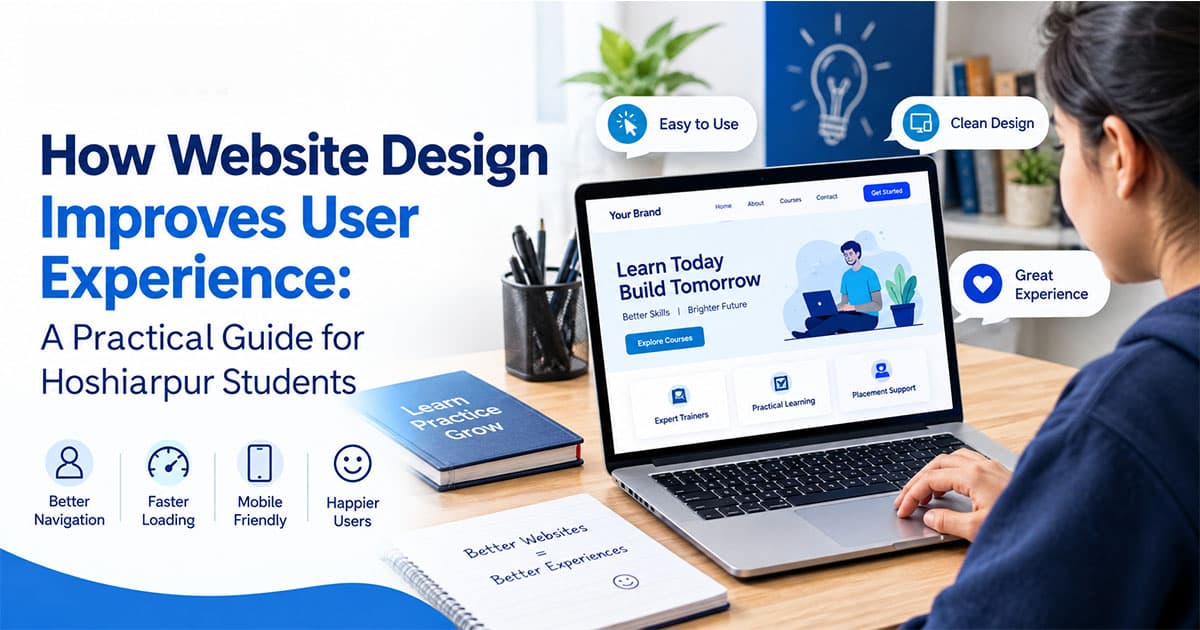
You open a website to find something simple, maybe a course fee or a shop's closing time. Within five seconds you're lost. The menu is hidden, the text is tiny and a pop-up covers half the screen. You close the tab and open another one.
Nobody stops to think, "That site had poor UX." You just leave. And that quiet exit is exactly why website design matters so much.
If you're a student in Hoshiarpur thinking about web design as a skill or a career, this is the idea to understand first. Design isn't about making a website look pretty. It's about making it easy, clear and pleasant to use. Let's break it down properly.
What Does "User Experience" Actually Mean?
User experience, or UX, is how a person feels while using a website. Can they find what they came for? Do they know what to click next? Does anything frustrate or confuse them?
Think about a good shop in your own city. The entrance is clear, products are arranged sensibly, the staff point you the right way and the billing counter is easy to find. You walk out feeling the visit was smooth. A badly designed shop is the opposite: narrow aisles, no labels, and nobody to ask.
A website works the same way. The design is the layout of the shop. Good design guides people. Bad design makes them work too hard.
A small clarification that confuses many beginners: UX and UI are not the same thing. UI (user interface) is what you see, like buttons, colours, fonts and images. UX is how the whole thing feels to use. A site can look stunning and still be a nightmare to use. As a designer, you need both.
Why First Impressions Happen Faster Than You Think
Here's something that surprises most students. People form an opinion about a website in a fraction of a second, long before they read a single sentence.
What are they judging in that moment? Mostly three things:
Does this look trustworthy?
Do I understand what this site is about?
Can I see where to go next?
If the answer to any of these is "no", many visitors simply leave. This isn't because they're impatient. Everyone has too many options, and a confusing site gives them a reason to try another.
Picture a local coaching institute with two websites to compare. One opens with a clean banner, a short line saying what they teach and a clear "Book a Free Demo" button. The other opens with a cluttered slideshow, five different fonts and a wall of text. A parent in Hoshiarpur checking both on a phone will trust the first one almost instantly, even if both institutes are equally good.
That's the real power of design. It shapes trust before the content gets a chance to speak.
Navigation: The Map of Your Website
Navigation is the menu and the links that help people move around. It sounds basic, but it's where many websites quietly fail.
Good navigation follows a few simple ideas.
Keep the menu short and clear. Five to seven main options are usually enough. When a menu has fifteen items, visitors freeze. Too many choices make people choose nothing.
Use words people actually understand. "Courses" is better than "Our Educational Offerings". "Contact" beats "Reach Out to Our Team". Clever labels might feel creative, but clear ones get clicked.
Make it consistent. The menu should sit in the same place on every page. If it jumps around, visitors feel like the rooms in a house keep rearranging themselves.
Let people go back easily. A visible logo that returns to the homepage, plus clear links, means nobody feels trapped.
A good test is the "three-click rule" in spirit: a visitor should reach what they want in just a few clicks without having to think hard. The rule isn't perfect, but it's a useful habit to build while you're learning.
Layout: Where Things Sit Matters More Than You'd Expect
Layout is how content is arranged on the page. Many beginners fill every empty corner because empty space feels wasteful. Experienced designers know the opposite is true.
White space (also called negative space) is the empty area around text, images and buttons. It isn't wasted. It's what lets the eye rest and helps people focus on what matters. A page without breathing room feels like a crowded railway platform: everything is there, but nobody can move comfortably.
Here's another useful fact. Most people don't read websites word by word. They scan. Their eyes jump over headings, bold text, images and buttons, looking for the part that answers their question. So a well-designed layout:
Places the most important information near the top
Uses clear headings to break long content into chunks
Keeps paragraphs short
Groups related things together
Puts buttons where eyes naturally land
Imagine reading a long essay with no paragraphs or headings. You'd probably give up halfway. Now imagine the same essay with clear sections and a short summary at the top. Same words, completely different experience. That difference is design.
Visual Hierarchy: Telling the Eye What to Look at First
This is one of the most useful ideas you'll learn, and it's simpler than it sounds.
Visual hierarchy means arranging elements so people notice the most important thing first, then the second, then the third. You create it through size, colour, position and contrast.
A big bold heading tells visitors, "Start here." A bright button says, "Click me." Smaller grey text says, "This is extra information."
Suppose you're designing a page for a computer course. What should a visitor see first? Probably the course name, then the key benefit, then a button to enquire. If the fee, the address, the logo and five offers all scream for attention at the same size, the visitor doesn't know where to look and ends up looking nowhere.
Many beginners make exactly this mistake. They treat everything as equally important, which means nothing feels important. When you're unsure, ask yourself: "If a visitor only looks at this page for three seconds, what should they walk away knowing?" Design around that answer.
A Quick Check You Can Do Today
You don't need any software to start training your eye. Open three websites you use regularly, maybe a shopping site, a news site and a local business. For each one, ask:
What did my eyes notice first?
Could I find what I wanted without hunting?
What annoyed me, even slightly?
Write your answers down. Within a week you'll start noticing design decisions everywhere, and that habit of noticing is what separates a designer from someone who just makes things look nice.
In Part 2, we'll look at the details that shape how a website feels: colours, fonts, mobile screens, loading speed and accessibility.
Blog Body, Part 2
Part 1 covered the big structure: navigation, layout and hierarchy. Now let's get into the details that quietly decide whether a visitor feels comfortable or irritated. These are the things people never consciously notice when they're done well, and always notice when they're done badly.
Colour: It's Not Just About Looking Nice
Most beginners pick colours the way they pick a favourite shirt, by what looks good to them. Designers pick colours by asking what the colour needs to do.
Colours carry feelings. Blue often feels calm and trustworthy, which is why so many banks and education sites use it. Red creates urgency. Green suggests growth or "go". Black and gold can feel premium. You don't need to memorise a chart, but you should know that colour sets a mood before anyone reads a word.
Here's a practical approach that works well for beginners:
Pick one main colour for your brand
Add one accent colour for important buttons
Use neutral shades (white, light grey, dark grey) for everything else
That's it. A website with eight bright colours looks like a festival banner, which is fun at a mela and exhausting on a screen.
Contrast matters most. Light grey text on a white background might look elegant on your laptop, but try reading it on a phone in bright sunlight outside a Hoshiarpur market. If it's hard to read, it's bad design, however stylish it looks. Dark text on a light background (or the reverse) keeps things readable for everyone.
Fonts: Readable Beats Fancy Every Time
Typography is a big part of UX because people spend most of their time reading. A website is mostly words.
Some simple rules save beginners from the most common mistakes:
Stick to two fonts at most. One for headings, one for body text. Using five different fonts makes a page look chaotic and unprofessional.
Make body text comfortably large. Tiny text forces people to squint or zoom in, and many simply won't bother. Around 16 pixels is a common starting point for body text.
Give lines some breathing space. Slightly increased line spacing makes paragraphs far easier to read.
Avoid decorative fonts for long text. A curly, stylish font might look great on a wedding invitation, but it's tiring in a paragraph.
A good test: if you have to concentrate to read it, the font is wrong, however good it looks in your design software.
Mobile Design: Where Most of Your Visitors Actually Are
This point deserves its own spotlight. Think about how you and your friends browse. Most of the time it's on a phone, in a bus, between classes, or lying on a bed. Your visitors are no different, and that includes parents and students in Hoshiarpur searching for courses, shops and services.
A website that looks perfect on a big monitor but falls apart on a small screen is a failed website. This is why designers talk about responsive design, meaning the layout adjusts automatically to fit any screen size.
On mobile, UX details become even more important:
Buttons must be big enough to tap. Tiny links that need a surgeon's precision cause frustration.
Menus should be simple. The familiar "hamburger" menu icon works because people recognise it.
Text should not need pinching and zooming.
Forms should be short. Typing on a phone is annoying, so ask only what you truly need.
Phone numbers should be tappable. If someone wants to call, one tap should do it.
Many experienced designers actually start with the mobile version first and then expand it for larger screens. It forces you to focus on what's truly essential, which is a good discipline for beginners too.
Speed: The Invisible Part of Design
Here's a question for you. How long do you wait for a website to load before you get annoyed? Probably not very long.
Page speed is part of user experience, even though you can't see it in a design file. A slow website feels broken. Visitors don't think, "The server is slow." They think, "This is bad," and leave.
Design choices have a big effect on speed. The most common culprits are:
Huge, uncompressed images. Beginners love beautiful full-screen photos, but a five-megabyte banner can slow a page badly, especially on mobile data.
Too many animations and effects. Fancy movement looks impressive in a portfolio, but visitors rarely thank you for making them wait.
Heavy video backgrounds. They look dramatic, but they cost a lot in loading time.
The fix is rarely complicated. Resize and compress images before uploading them, keep animations purposeful, and don't add features just because you can. Good designers learn that restraint is a skill.
Accessibility: Designing for Everyone
Accessibility means making sure people with different abilities can use your website. This includes people with poor eyesight, colour blindness, hearing difficulties, or those who can't use a mouse.
It might sound like a specialised topic, but the basics are simple and they improve the experience for everybody:
Use strong contrast between text and background
Add short descriptions (alt text) to images, so screen readers can explain them
Don't rely on colour alone to show something (for example, an error shown only in red)
Make sure the site can be navigated with a keyboard
Use clear, plain language
Think of a ramp at a building entrance. It's built for wheelchair users, but parents with prams, people with heavy luggage and elderly visitors all benefit. Accessible design works exactly like that.
Learning this early also makes you more valuable. Employers and clients increasingly care about it, and it's a habit that's far easier to build from the start than to fix later.
Calls to Action: Helping People Take the Next Step
A website usually exists for a reason. A business wants enquiries. A shop wants orders. An institute wants admissions. A call to action (CTA) is the button or link that guides visitors toward that step, such as "Enquire Now", "Book a Demo" or "Call Us".
Good CTAs are:
Clear: "Download Syllabus" says exactly what happens
Visible: they stand out through colour and position
Limited in number: one main action per section is plenty
Honest: the button should do what it promises
Common beginner mistakes include hiding the CTA at the bottom of a long page, using vague wording like "Click Here", or placing five competing buttons next to each other. When people have too many options, they hesitate. When the next step is obvious, they take it.
In Part 3, we'll connect all of this to real results, look at the mistakes beginners make most often, and talk about how you can start building these skills in Hoshiarpur with techcadd.
Blog Body, Part 3
So far we've looked at the structure and the details. Now let's connect everything to real outcomes, talk about the mistakes beginners make, and answer the questions most students quietly wonder about.
How Good Design Shows Up in Real Results
Design isn't decoration. It changes what happens after someone lands on a website.
Visitors stay longer. When a page is easy to read and navigate, people keep exploring instead of leaving after a few seconds.
More people take action. A clear button, a short form and a trustworthy look all make it more likely that someone will call, enquire or buy.
The business looks more credible. A neat, modern website tells visitors, "These people take their work seriously." For a local business in Hoshiarpur, whether it's a clinic, a coaching centre, a boutique or a restaurant, that trust can decide who gets the phone call.
Fewer people get frustrated. Good UX means fewer confused visitors, fewer abandoned forms and fewer "I couldn't find it" moments.
This is why companies pay for good web designers. They aren't paying for pretty pictures. They're paying for a website that works for their customers.
Mistakes Beginners Make (and How to Avoid Them)
Everyone makes these mistakes at the start. Knowing them early saves you months.
1. Designing for yourself instead of the visitor.
You might love a dark theme with neon text, but would a parent checking fee details on their phone enjoy it? Always ask who the website is for.
2. Adding too much.
More animations, more colours, more sections, more pop-ups. Beginners often feel that adding more means better design. Usually, removing things makes a design better.
3. Ignoring mobile screens.
If you only test on a laptop, you're missing where most visitors are. Always check your design on a phone.
4. Copying a template without understanding it.
Templates are fine for learning, but if you don't know why a layout works, you can't fix it when it doesn't. Try to understand the reasoning behind each choice.
5. Skipping real feedback.
You've stared at your own design for hours, so you can't see it fresh. Show it to a friend, a cousin or a family member and watch where they get stuck. Their confusion is more useful than a compliment.
6. Forgetting about content.
A beautiful layout with weak, unclear text still fails. Good designers care about the words as much as the visuals.
7. Making it look impressive instead of useful.
It's tempting to build something that wins admiration from other designers. But the real test is whether an ordinary visitor can get what they need quickly.
Questions Students Often Ask
"Do I need to be good at drawing or art to learn web design?"
No. Web design is more about problem-solving and understanding people than artistic talent. If you can notice what's confusing and what feels clear, you already have the starting point. The visual skills grow with practice.
"Is this suitable for beginners?"
Yes. UX principles like clear navigation, readable text and simple layouts are easy to understand and apply from day one. You can start with the basics and build up gradually.
"Do I need to learn coding first?"
Not necessarily. Many people begin with design thinking and tools, then add HTML and CSS later. Knowing a little code does help, because you understand what's actually possible on a real website, but you don't have to master it before you begin.
"What should I learn first?"
Start with layout, colour, typography and visual hierarchy. Then move to responsive design and basic UX ideas. After that, tools and coding become much easier to pick up because you already know what you're trying to build.
"Will this skill actually help my career?"
Every business needs a website, and every website needs someone who understands how visitors use it. Web design opens paths into freelancing, agency roles, UI/UX design, front-end development and digital marketing support. It isn't a guarantee of a job, since results depend on your practice and portfolio, but it's a practical skill with real demand.
Building the Skill Step by Step
Reading about design helps, but you only truly learn it by doing. Here's a simple path you can follow.
Start by observing. Spend a week studying websites you use. Note what works and what irritates you.
Redesign something small. Take a poorly designed page, maybe a local business site you've seen, and sketch how you'd improve it. You don't need to build it. Just practise thinking.
Build simple projects. A personal portfolio, a one-page site for an imaginary shop, or a landing page for a course. Keep each project small and finish it.
Test with real people. Ask someone to complete a task on your design, like finding a phone number, and watch silently. You'll learn more in five minutes than in an hour of guessing.
Collect a portfolio. Employers and clients want to see what you can do. A few honest, well-thought-out projects speak louder than a long list of tools.
Learn with guidance. Self-teaching is possible, but a structured course with a mentor, practical projects and feedback saves you from building bad habits. If you're in Hoshiarpur and want hands-on training, techcadd offers a way to learn web design with practical guidance rather than only theory.
Final Thoughts: Design Is Really About Respect
Here's the idea worth carrying with you. Good website design is a form of respect for the visitor. It respects their time by being quick, their attention by being clear, their eyes by being readable and their situation by working on whatever device they're holding.
Every decision you make as a designer, from the colour of a button to the size of a font, either makes someone's day slightly easier or slightly harder. Choose easier.
If you're a student in Hoshiarpur wondering whether web design is worth learning, start small. Look at your next website with a designer's eye, notice what works, and ask why. That curiosity is the first real step, and everything else can be learned from there.
If you're a student in Hoshiarpur wondering whether web design is worth learning, start small. Look at your next website with a designer's eye, notice what works, and ask why. That curiosity is the first real step, and everything else can be learned from there.
Comments
Nothing here yet. Be the first to say something.