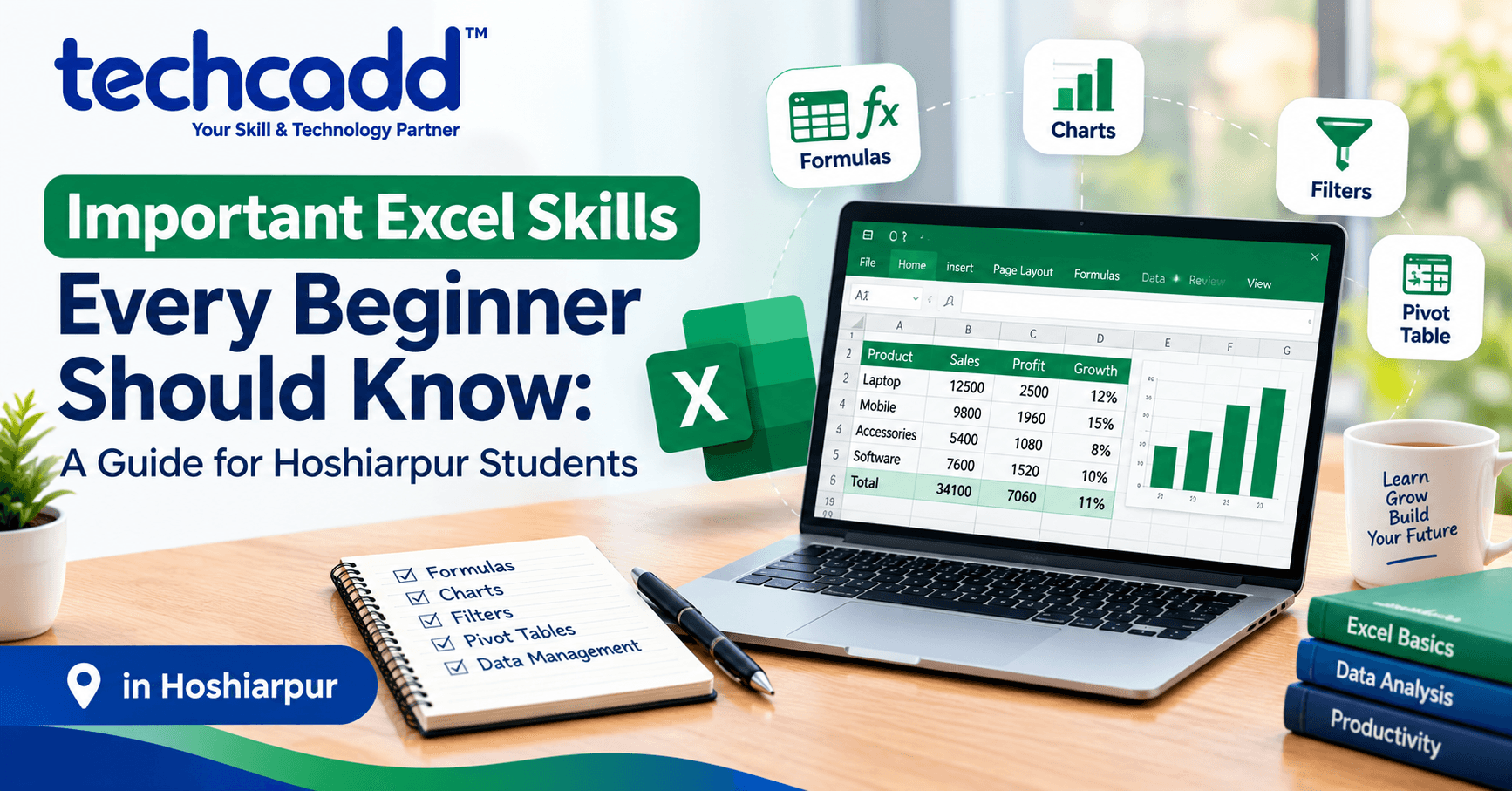
Important Excel Skills Every Beginner Should Know: A Guide for Hoshiarpur Students
Part 1
Open Excel for the first time and it can feel like staring at a giant grid of empty boxes, with a ribbon full of buttons you don’t recognize. Someone says “just use a formula,” and you quietly wonder where on earth you’re supposed to type it.
If that’s how you feel, you’re in good company. Almost everyone who is comfortable with Excel today once sat in front of that same blank grid, unsure what to click first. The good part is that you don’t need to learn all of Excel. A small set of skills covers most of what students and beginners actually use, and this guide walks through them in a practical order.
Why Excel Is Worth Your Time
Many students assume Excel is only for accountants or finance students. In reality, it shows up everywhere. A student tracks marks across subjects. A shop owner in Hoshiarpur keeps a list of daily sales. A coaching institute maintains student fee records. A college team splits event expenses. All of these are Excel jobs.
At its heart, Excel does two things well: it organizes information neatly, and it calculates things for you. Once you see it that way, the software stops feeling like a mystery and starts feeling like a helpful assistant.
Skill 1: Understanding Rows, Columns, Cells and Sheets
This is the foundation, and skipping it is the reason many beginners get confused later.
An Excel file (called a workbook) is made of sheets. Each sheet is a grid. Columns run vertically and are named with letters (A, B, C). Rows run horizontally and are numbered (1, 2, 3). Where a column and a row meet, you get a cell, and every cell has an address like B3 or D10.
That address matters more than it seems. Almost every formula you write will point to cell addresses, so being comfortable with them makes everything else easier. Spend your first practice session just clicking around, typing in cells, and noticing how the address changes.
Skill 2: Entering and Organizing Data Properly
Excel works best when your data is organized in a clean table. Put headings in the first row (like Name, Subject, Marks), and keep one type of information in each column. Avoid leaving random blank rows or columns in the middle of your data.
Think of it like a well-kept register. If every entry follows the same pattern, finding and calculating things is easy. If the register is messy, no tool can fix it for you. Most formula problems beginners face actually come from untidy data.
Skill 3: Basic Formatting That Makes Data Readable
Formatting isn’t just about looks. It decides whether someone can understand your sheet at a glance.
Useful basics include making headings bold, adjusting column width so text isn’t cut off, adding borders to create a clear table, and using number formats properly, such as showing currency with a rupee sign or dates in a consistent style. Even a simple sheet looks far more professional with these small touches.
Skill 4: Basic Formulas
This is where Excel becomes genuinely powerful. Every formula starts with an equals sign (=). The most useful ones for beginners are:
SUM adds up a range of numbers, such as total marks or total expenses
AVERAGE finds the mean value, such as an average score
COUNT counts how many cells contain numbers
MAX and MIN find the highest and lowest values
For example, if marks are in cells B2 to B6, typing =SUM(B2:B6) gives the total instantly. And if one of the marks changes later, the total updates by itself. That automatic updating is the real magic, and it saves you from recalculating everything by hand.
Skill 5: Cell References, Relative and Absolute
This sounds technical, but the idea is simple, and it’s the point where many beginners get stuck.
A relative reference (like B2) changes automatically when you copy a formula to another cell. This is usually what you want. An absolute reference (like $B$2, with dollar signs) stays fixed no matter where you copy the formula.
Here’s a practical example. Suppose you’re calculating 10% tax on a list of prices, and the tax rate sits in one cell. If you don’t lock that cell with dollar signs, the reference will shift as you copy the formula down, and your answers will go wrong. Learning this one idea early prevents a lot of confusing errors later.
Skill 6: Sorting and Filtering Data
Once you have a list, you’ll often want to arrange it or look at only part of it. Sorting lets you arrange data alphabetically, from smallest to largest, or by date. Filtering lets you show only the rows you care about, such as only students from one batch or only expenses above a certain amount.
Imagine a list of two hundred fee records. Without sorting and filtering, finding who still has a pending payment means scrolling endlessly. With them, it takes a few clicks. This is one of the most practical skills you can learn in your first week.
A Common Doubt: “Do I Need to Be Good at Maths for Excel?”
Short answer: no. If you can handle basic arithmetic like adding, averaging and calculating percentages, you can use Excel comfortably. The software does the calculation. Your job is to tell it what to calculate and to check whether the answer makes sense.
What actually helps is logical thinking, the habit of asking “what do I want to find out from this data?” That matters far more than being strong in advanced maths.
Why This Matters for Students in Hoshiarpur
Whether you’re preparing for an internship, helping manage records for a family business, or building skills for your first job, Excel is one of the most frequently expected skills in entry-level roles. Local offices, clinics, shops and institutes in and around Hoshiarpur keep records and track numbers every day, and someone who can organize that information confidently is genuinely useful from the very first week.
Skill 7: Creating Simple Charts
Numbers on their own can be hard to read. A chart turns them into something you can understand in a few seconds.
Excel offers many chart types, but beginners only need to know three. A column or bar chart compares values, like sales across different months. A line chart shows change over time, like your monthly savings. A pie chart shows how a whole is divided, like how a monthly budget splits across rent, food and travel.
The trick isn’t making the fanciest chart. It’s choosing the right one and giving it a clear title and labels. A simple chart that anyone can understand beats a decorated one that confuses people.
Skill 8: The IF Function
Once you’re comfortable with basic formulas, the IF function is a great next step, because it lets Excel make simple decisions for you.
The idea is simple: if something is true, show one result; otherwise, show another. For example, you can check whether a student has passed. If the marks are 40 or above, show “Pass,” otherwise show “Fail.” Written out, it looks like this: =IF(B2>=40,"Pass","Fail").
It looks a little tricky the first time, but after a few practice examples it starts to feel natural. Teachers, shop owners and office staff use this kind of logic constantly, from marking pass or fail to flagging overdue payments.
Skill 9: VLOOKUP or XLOOKUP
This is one of the skills that makes people say “Oh, that’s what Excel can do!”
A lookup function finds information in a table based on a value you give it. Imagine you have a large list of student IDs with names and phone numbers. Instead of scanning the list manually, you type an ID and Excel pulls out the matching name or number automatically.
VLOOKUP has been the classic choice for years, and XLOOKUP is a newer, more flexible option in recent versions of Excel. Don’t worry about mastering both at once. Learn one properly, understand the logic of “find this value, then return that related value,” and you’ll be able to pick up the other easily.
Skill 10: Basic Data Cleaning
Real data is rarely tidy. Names have extra spaces, dates are typed in different styles, and the same entry appears twice. Learning a few cleaning skills saves a huge amount of time.
Useful ones include removing duplicates, using Find and Replace to fix repeated mistakes, using Text to Columns to split a full name into first and last name, and using the TRIM function to remove stray spaces. These aren’t glamorous, but anyone who has worked with real data will tell you they use them all the time.
Skill 11: Introduction to Pivot Tables
Pivot tables sound intimidating, but the basic idea is easy. A pivot table takes a long list of data and summarizes it in seconds.
Say you have a list of a thousand sales entries with columns for date, product, city and amount. A pivot table can instantly show you total sales per product, or total sales per city, without writing a single formula. You simply drag fields into place.
You don’t need to master pivot tables in your first month. But knowing they exist, and trying one on a practice dataset, gives you a real head start, because summarizing data is one of the most common tasks in office jobs.
Skill 12: Keyboard Shortcuts That Save Time
A few shortcuts make a noticeable difference once they become habit. Ctrl+C and Ctrl+V copy and paste, Ctrl+Z undoes a mistake, Ctrl+S saves your work, and Ctrl+Arrow keys jump quickly to the edge of your data. Pressing F4 toggles between relative and absolute references, which is handy once you’ve learned that concept.
You don’t need to memorize a long list. Pick two or three, use them until they feel automatic, then add a few more.
Common Mistakes Beginners Make in Excel
Almost everyone makes some of these early on. Knowing them in advance saves frustration.
Mistake 1: Typing totals by hand instead of using formulas
If you type a total manually, it won’t update when the numbers change. Always let a formula do the work so your sheet stays accurate.
Mistake 2: Merging cells too much
Merged cells look neat but often cause problems with sorting, filtering and formulas. Use them sparingly, mostly for titles.
Mistake 3: Leaving blank rows and columns inside data
Gaps confuse Excel about where your table ends, which can break sorting, filtering and pivot tables. Keep your data in one continuous block.
Mistake 4: Not checking the results of formulas
A formula can run without any error and still give a wrong answer, usually because of a wrong cell reference. Always glance at a result and ask whether it makes sense.
Mistake 5: Forgetting to save and keep backups
Power cuts and accidental closures happen. Save often, and keep a copy of important files somewhere safe, like Google Drive.
Mistake 6: Trying to learn everything at once
Excel has hundreds of features. Beginners who try to learn them all usually burn out. Focus on the core skills first and learn the rest only when a real task needs them.
Is This Suitable for Complete Beginners?
Yes. Excel is one of the friendlier skills to start with because you see results right away. Type a few numbers, write a formula, and the answer appears. That quick feedback keeps motivation high.
You don’t need a technical background. Students from commerce, arts, science and every other stream learn Excel successfully. What you need is regular practice on real examples, not just watching tutorials.
What Should You Learn First?
If you’re starting from scratch, here’s a sensible order:
Rows, columns, cells and sheets, so the layout feels familiar
Entering and organizing data neatly, with clear headings
Basic formatting, so your sheets are readable
Basic formulas, such as SUM, AVERAGE, COUNT, MAX and MIN
Relative and absolute references, to avoid common formula errors
Sorting and filtering, to manage lists easily
Simple charts, to present numbers visually
The IF function, to make basic decisions in your data
VLOOKUP or XLOOKUP, to find information quickly
Data cleaning and pivot tables, once the earlier skills feel comfortable
This order lets you start doing useful work early, then build toward the skills that impress employers.
How Excel Skills Show Up in Real Life Around Hoshiarpur
Let’s make this concrete. Think about the kinds of places around Hoshiarpur where numbers and records matter every single day.
A coaching institute keeps track of student attendance, fee payments and test scores. A small clinic maintains patient appointment lists and billing records. A retail shop watches its stock, daily sales and supplier payments. A real estate dealer tracks property listings and client follow-ups. A college society manages the budget for its annual fest.
In every one of these, someone has to keep the data tidy and make sense of it. That person doesn’t need to be an accountant or a data scientist. They just need to be comfortable with the skills in this guide: organizing data, using formulas, sorting and filtering, and presenting results clearly. Whoever can do that reliably quickly becomes the person everyone turns to, and that’s a very good position for a fresher to be in.
How Difficult Is It, Really?
Let’s be honest. The basics of Excel are easy. You can learn rows, columns, formatting and simple formulas in a few days of regular practice. The real learning curve begins with things like absolute references, IF statements, lookups and pivot tables. These take a bit more patience, because they ask you to think logically about how data connects.
Here’s what usually happens. A formula doesn’t work, you stare at it, you check the cell references, and you find the small mistake. After a few rounds of this, you start spotting errors faster. That frustration is not a sign you’re bad at Excel. It’s exactly how the skill gets built.
Most students find the first two weeks the slowest, mainly because everything is new. After that, progress tends to speed up noticeably, because the later skills build on the earlier ones.
Do You Need Previous Experience?
No. You can start from zero. Students from commerce, arts, science and non-technical backgrounds all learn Excel successfully, and you don’t need a degree in anything to get started.
What helps far more than experience is practicing on data that matters to you. Track your own monthly expenses. Make a marks sheet for your subjects. Build a simple attendance register. When the data is real, the formulas stop feeling abstract, and you remember them much better than you would from watching a tutorial.
What Can You Actually Do After Learning Excel?
Once you’re comfortable with these skills, a number of practical doors open:
Internships and entry-level jobs, since Excel is expected in office, accounts, administrative and support roles
Data entry and MIS roles, where organizing and reporting data is the main job
Accounts and finance support, tracking expenses, preparing basic reports and reconciling figures
A foundation for data analytics, since tools like Power BI and Python build on the same thinking you develop in Excel
Freelance or small-business support, helping local shops, clinics and institutes organize their records
Better college performance, handling project data, surveys and reports with far less stress
Notice how many of these paths don’t require an advanced degree. Strong, practical Excel skills alone can get you started.
Will This Skill Actually Help Your Career?
Yes, and probably more than you’d expect. Excel is one of the most commonly listed skills in job descriptions across industries, from banking and retail to healthcare and education. Even roles that don’t sound numbers-heavy often involve tracking, reporting or planning that Excel handles well.
It also pairs nicely with other skills. Digital marketers use it to analyze campaign data. Web developers use it to organize content and client information. Designers use it for project budgets and schedules. Learning Excel doesn’t lock you into one career path. It makes whichever path you choose smoother.
And in a time when AI tools can help write formulas, the skill that matters is still knowing what to ask for and whether the answer is right. Someone who understands the logic behind Excel can use those tools well. Someone who doesn’t will simply trust whatever appears on screen.
A Few Honest Thoughts Before You Go
If there’s one thing to take from this guide, it’s that you don’t need to master all of Excel. You need a solid, practical core: clean data, basic formulas, sorting and filtering, a simple chart, and a gradual understanding of IF, lookups and pivot tables.
Start small. Open a blank sheet today and build something real, even if it’s just a list of your monthly expenses with a total at the bottom. Then add one new skill at a time. A little practice every day beats a long session once a month.
When you get stuck, which you will, treat it as part of the process. Check your cell references, test your formula on a small example, and try again. That’s exactly what experienced users do.
For students in Hoshiarpur looking for a practical, employable skill they can start learning right now, Excel is one of the best places to begin. It’s approachable, it’s useful from the first week, and it keeps paying off long after you land your first job.


Comments
Nothing here yet. Be the first to say something.