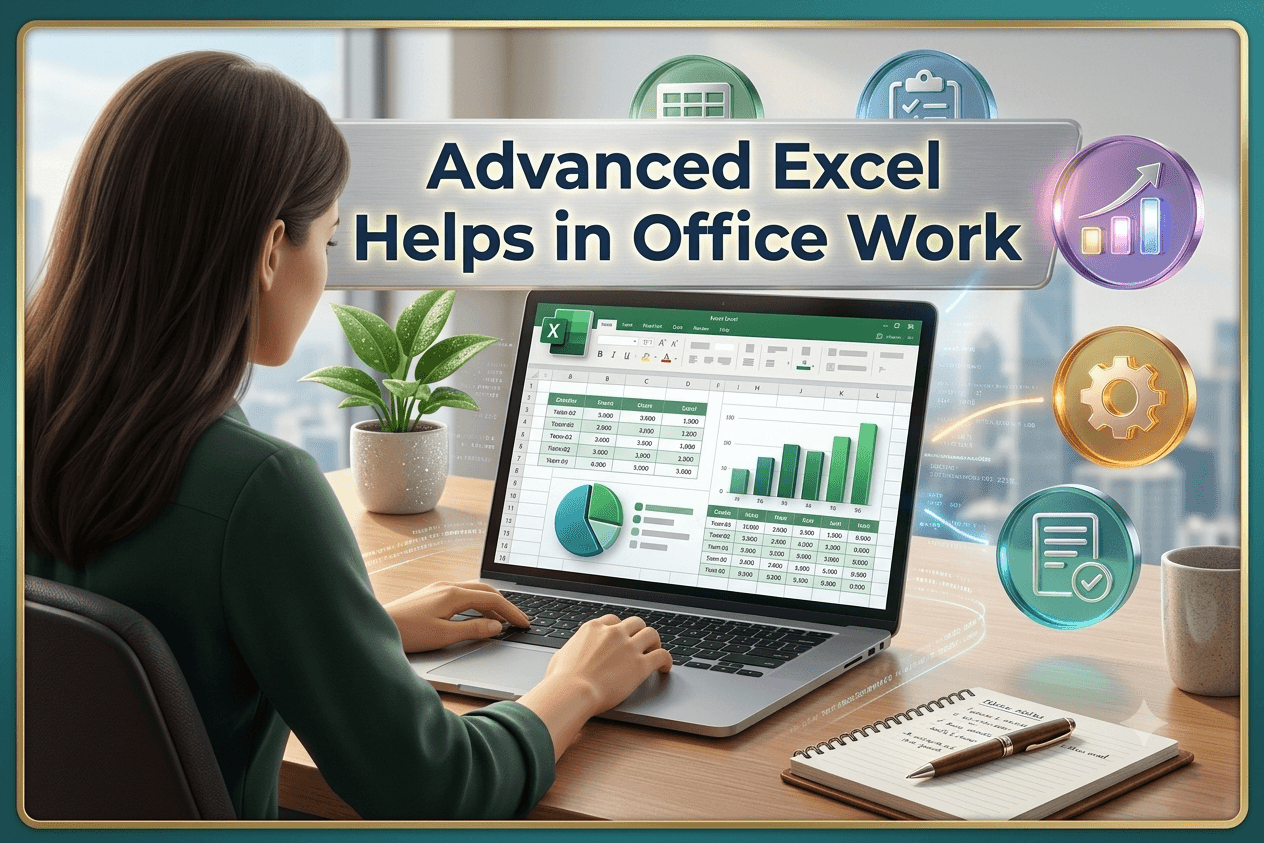
Picture a junior accountant on her first month at a company. Her manager hands her a sheet with 3,000 rows of sales data and says, "Can you tell me which product sold best in each region by evening?"
One person spends the whole day copying, filtering and adding things by hand. Another person finishes in twenty minutes, makes a cup of tea and uses the extra time to spot something interesting in the numbers.
The difference between them usually isn't intelligence. It's knowing advanced Excel.
If you're a student in Hoshiarpur wondering whether Excel is still worth learning, this blog is for you. We'll look at what advanced Excel actually means, how it's used in real offices and why it keeps showing up in job descriptions.
First, What Is "Advanced" Excel?
Most of us learn basic Excel at school or in a computer class. You type numbers into cells, use SUM to add a column, maybe colour a few rows and make a simple chart. That's useful, but it's like knowing how to ride a bicycle in your lane. Advanced Excel is when you can handle the whole highway.
Advanced Excel usually includes:
Smart formulas that make decisions, search for data and combine information from different places
Pivot tables that summarise thousands of rows in seconds
Data cleaning tools that fix messy information automatically
Dashboards and charts that turn numbers into something a manager can understand at a glance
Automation that handles repetitive work for you
Data validation and protection, which reduce mistakes and keep files safe
Here's the good news for beginners: none of this is as scary as it sounds. Every advanced feature is built on the same basic ideas you already know. You're just learning to use the tool properly.
Why Do Offices Still Depend on Excel?
You might think, "Surely there's fancier software now?" There is, but Excel hasn't gone anywhere. Walk into almost any workplace and you'll find it quietly running things.
An accounts team uses it for invoices and expense tracking. HR keeps attendance, leave and payroll in it. A sales team tracks targets and customer follow-ups. A school office or small business in Hoshiarpur may use it for fee records, stock lists and monthly reports. Even people in marketing use it to compare campaign results.
Why does it stay so popular? A few simple reasons:
It's flexible. You can use it for a tiny shopkeeper's ledger or a large company's financial report.
Almost everyone already has it. There's no special training needed just to open a file.
It connects with other tools. Data from accounting software, websites and other systems often ends up in Excel for final checking.
Decision-makers understand it. A manager may not read a complicated report, but they'll happily look at a clear Excel summary.
So when someone says "send me the data", they very often mean "send me an Excel file". Being the person who can make that file useful puts you ahead.
How Advanced Excel Saves Hours of Daily Work
Let's get practical. Here are the kinds of everyday office tasks that advanced Excel makes dramatically easier.
Finding information without scrolling forever
Imagine you have a list of 500 employee IDs in one sheet and their salaries in another. Your manager wants everything in one place. Doing it manually means searching for each ID one at a time, which is slow and easy to mess up.
A lookup formula such as VLOOKUP or the newer XLOOKUP does this in seconds. You tell Excel what to look for and where to look, and it brings back the answer for every row at once. Once you've used this a few times, you'll wonder how anyone worked without it.
Making Excel think for you
The IF formula lets a sheet make simple decisions. For example, a school office might want to mark students as "Pass" or "Fail", or a sales team might want to flag everyone who missed their monthly target.
Add AND, OR and nested IF statements, and your sheet can handle surprisingly complex rules without anyone checking each row by hand.
Adding up only what matters
Basic SUM adds everything. But what if you only want total sales for one city, in one month, for one product? That's where SUMIFS and COUNTIFS come in. They add or count only the rows that meet your conditions.
A question that once took an hour of filtering and calculator work becomes a single formula.
Cleaning messy data
Anyone who has received a file from several people knows the pain. Names appear in capitals in one row and lowercase in another. There are extra spaces nobody can see. Dates are written five different ways. Phone numbers are stuck together with text.
Excel has tools for exactly this. Functions like TRIM, PROPER, LEFT, RIGHT, TEXT and CONCAT fix formatting problems quickly. Features such as Remove Duplicates and Text to Columns can clean a sheet in a few clicks that would otherwise take half a day.
This is one of the least glamorous parts of advanced Excel, but it's often the part employers appreciate most. Clean data means fewer mistakes later.
A Quick Reality Check for Beginners
You might be thinking, "Do I need to be good at maths for this?"
Not really. If you can understand basic percentages and logical thinking, such as "if this happens, then do that", you're fine. Excel does the heavy calculating. Your job is to ask the right question and set it up properly.
Another common worry is, "Will I forget all these formulas?" Honestly, even experienced professionals look things up regularly. What matters is understanding what each tool can do, so you know which one to reach for. The exact syntax comes with practice.
In Part 2, we'll look at the features that make people say "wow" in meetings: pivot tables, dashboards, Power Query and automation, plus how they help in different office roles.
Blog Body, Part 2
In Part 1 we covered formulas and data cleaning. Now let's look at the features that make a manager lean forward in a meeting and say, "How did you do that so fast?"
Pivot Tables: Your Data's Best Translator
If you learn only one advanced Excel feature, make it this one.
A pivot table takes a huge list of data and summarises it in whatever way you need, without a single formula. Imagine a sheet with 10,000 rows of sales: date, city, salesperson, product and amount. Your manager asks:
What were total sales for each city?
Which salesperson did best this quarter?
How did each product perform month by month?
Without a pivot table, each question means a fresh round of filtering and adding. With one, you drag fields into boxes and the answer appears. If the question changes, you rearrange the fields and get a new view in seconds.
Here's a way to picture it. Raw data is like a huge pile of receipts. A pivot table is the person who sorts them, adds them up and hands you a neat summary on one page.
Beginners often avoid pivot tables because they look complicated. Try one on a small sample, say 50 rows of fake sales data, and the idea clicks surprisingly quickly. Most students are comfortable with the basics after a few practice sessions.
Charts and Dashboards: Making Numbers Easy to Understand
Here's a truth about offices: most people don't want to read rows of numbers. They want to see what's happening.
A well-made chart turns a table into a story. A line chart shows whether sales are rising or falling. A bar chart compares departments. A pie chart, used sparingly, shows how a whole is divided.
A dashboard goes one step further. It's a single page that pulls together the key charts, totals and highlights, so a manager can understand the whole situation in half a minute. A monthly sales dashboard might show total revenue, best-performing product, target versus actual and a trend line all at once.
A few habits make dashboards much better:
Keep it simple. Five clear charts beat fifteen crowded ones.
Show only what matters. Ask what decision the reader needs to make.
Label things clearly. A chart nobody can read is just decoration.
Use colour with purpose. Highlight what needs attention, not everything.
Add slicers, which are clickable filter buttons, and your dashboard becomes interactive. A manager can click "Ludhiana" or "Hoshiarpur" and watch every chart update instantly. That kind of thing impresses people, and it's easier to build than it looks.
Conditional Formatting: Letting Excel Highlight Problems
Imagine a sheet of 200 pending payments. Which ones are overdue? You could read every row, or you could let Excel colour overdue entries red automatically.
That's conditional formatting. You set a rule, such as "highlight any date before today" or "show the top 10 values in green", and Excel applies it to every cell, updating it as the data changes.
It's used for flagging low stock, spotting duplicate entries, marking targets achieved and catching unusual numbers. It's a small feature that saves real attention, especially in long sheets.
Data Validation: Preventing Mistakes Before They Happen
Most Excel errors don't come from bad formulas. They come from someone typing the wrong thing, like "Jalandar" instead of "Jalandhar", or entering text where a number should go.
Data validation solves this by controlling what can be entered in a cell. You can create a dropdown list so users pick from fixed options, set limits on numbers or dates and show a helpful message when something's wrong.
If you've ever filled a form and been unable to submit until you chose a state from a list, you've seen the same idea. In a shared office file where several people enter data, this keeps things tidy and consistent.
Power Query: Cleaning Data Once, Reusing It Forever
This one sounds technical, but the idea is simple.
Suppose every month you receive a messy report. Each time, you spend an hour removing blank rows, fixing columns, changing formats and combining several files into one. Power Query lets you record those cleaning steps once. Next month, you drop in the new file, press refresh and the entire process runs by itself.
It can combine data from multiple Excel files, text files and other sources, and it remembers every step. For anyone dealing with monthly or weekly reports, it's a genuine time saver. It's also a skill that's increasingly mentioned in data and analyst roles.
You don't need to master it on day one. Knowing it exists, and learning it after you're comfortable with formulas and pivot tables, is a sensible path.
Macros: Teaching Excel to Do Repetitive Jobs
A macro is a recorded set of actions that Excel can repeat on command. If you perform the same ten steps every morning, such as formatting a report, adjusting column widths, adding a header and printing, you can record them once and run them with a single click.
Macros are written in a language called VBA, and while writing your own code is a more advanced step, simply recording macros is accessible even to beginners. Even then, you'll notice real time savings.
A word of caution that experienced users will tell you: automate only what you understand. Automating a messy process just makes mistakes happen faster.
How This Helps Different Office Roles
Advanced Excel isn't only for accountants. Here's how it shows up across jobs:
Accounts and finance: reconciliations, budgets, GST-related summaries, expense tracking and financial reports.
HR and administration: attendance, leave records, payroll sheets and employee databases.
Sales and marketing: lead tracking, target-versus-achievement reports and campaign comparisons.
Operations and inventory: stock levels, reorder alerts, supplier records and delivery tracking.
Education and institutes: student records, fee collection, result analysis and attendance summaries.
Small business owners: daily sales, customer lists, profit calculations and monthly planning.
Notice something about this list. The tool is the same, but the way you use it changes with the job. That's why learning Excel with practical, role-based examples works better than memorising formulas from a textbook.
In Part 3, we'll talk about the mistakes beginners make, the questions students ask most, how Excel connects to your career and how to start learning step by step in Hoshiarpur with techcadd.
Blog Body, Part 3
You now know what advanced Excel can do. Let's talk about the human side: the mistakes people make, the questions students quietly worry about and how to actually start.
Mistakes Beginners Make (and How to Avoid Them)
Almost everyone makes these at the start. Spotting them early saves a lot of frustration.
1. Memorising formulas without understanding them.
Copying a formula from a tutorial works until your data looks slightly different. Then you're stuck. Instead, ask what the formula is doing, step by step. When you understand the logic, you can adapt it to any situation.
2. Typing numbers directly into formulas.
If you write =B2*0.18 and the tax rate changes next year, you'll have to hunt down every formula that uses it. Put the rate in its own cell and refer to it instead. Your future self will be grateful.
3. Merging cells everywhere.
Merged cells look neat but cause problems with sorting, filtering and pivot tables. Use them sparingly, mostly for titles.
4. Ignoring messy data.
Extra spaces, inconsistent spellings and mixed date formats quietly break formulas. Clean first, analyse second.
5. Building one giant, confusing sheet.
Put raw data, calculations and reports on separate sheets where possible. It's easier to check and easier for a colleague to follow.
6. Not checking the results.
A formula can run perfectly and still give a wrong answer. Always test with a few rows you can verify by hand. Experienced users do this every time.
7. Skipping backups.
Save versions of important files, especially before big changes. "Final_report_final2_REAL.xlsx" is a joke for a reason.
8. Trying to learn everything at once.
Excel is huge. Nobody uses every feature. Learn what your work needs first, then expand.
Questions Students Ask Most
"Is advanced Excel suitable for beginners?"
Yes, as long as you're comfortable with the basics like entering data, simple formulas and formatting. If you aren't, a short refresher at the start helps, and a good course will cover this anyway.
"Do I need previous experience?"
Not much. Basic computer skills are enough to begin. Experience with real-looking data, like sales sheets or attendance records, matters more than knowing technical terms.
"How difficult is it?"
Honestly, it's moderate. Some topics, like lookup formulas and pivot tables, feel confusing at first and then suddenly make sense. Macros and Power Query take more time. Regular practice matters far more than natural talent.
"How long does it take to learn?"
It depends on how often you practise. Most people can become comfortable with core advanced features in a few weeks of steady learning, though real confidence comes from using it on actual tasks.
"What should I learn first?"
A sensible order is:
Strong basics: formatting, sorting, filtering and simple formulas
Logical and lookup formulas: IF, VLOOKUP/XLOOKUP, SUMIFS, COUNTIFS
Data cleaning tools
Pivot tables and charts
Conditional formatting and data validation
Dashboards
Power Query and macros
"Will this skill actually help my career?"
It can. Excel appears in job descriptions for accounts, data entry, MIS, HR, sales support, operations and administration roles, and it supports growth into data analysis and reporting. It won't guarantee a job on its own, since employers also look at communication, attitude and other skills, but it's one of the most practical skills you can add to your profile.
What Can You Do After Learning Advanced Excel?
Here are some directions students commonly explore:
MIS executive or reporting assistant: preparing regular reports for management
Accounts or finance assistant: budgets, reconciliations and financial summaries
Data entry and data operations roles: with stronger accuracy and speed
HR or admin support: handling employee data and payroll sheets
Sales or business support: tracking targets and analysing performance
Entry-level data analyst: especially if you pair Excel with other data skills later
Freelance or small-business help: many local businesses need someone to organise their records
Even if your career goes in a completely different direction, Excel helps. Almost any job that involves numbers or lists becomes easier once you know it.
How to Start Learning, Step by Step
You don't need a perfect plan. A simple routine works well.
Practise on real-looking data. Create a sample sheet with fake sales, student marks or expenses. Learning feels much more meaningful when the data looks like something you'd actually meet at work.
Solve one problem at a time. Instead of "learn pivot tables", set a goal like "find total sales for each city". Goal-based learning sticks better.
Break things on purpose. Change a value, delete a column, see what happens. Understanding why a formula fails teaches you more than watching it succeed.
Build small projects. A monthly budget tracker, an attendance sheet, a simple sales dashboard. Finished projects also become proof of your skills when you talk to employers.
Keep a personal cheat sheet. Write down formulas you've struggled with, in your own words.
Learn with guidance. You can teach yourself from videos, but it's easy to get stuck, pick up bad habits or miss important features. If you're in Hoshiarpur and want practical, hands-on training with someone who can explain doubts and review your work, techcadd is a place to explore. Look for training that focuses on real office tasks, not just theory.
The Bigger Picture
Advanced Excel isn't really about formulas and buttons. It's about being the person who can take a confusing pile of information and make sense of it, quickly and accurately. That ability helps in nearly every office, and it gives you more confidence when someone hands you a messy task.
If you're a student in Hoshiarpur thinking about your first job, or an employee who wants to work smarter, Excel is a sensible place to invest your time. Start small, practise regularly and be patient with yourself in the first few weeks. The day a lookup formula or a pivot table finally clicks, you'll see why so many people say they wish they'd learned it sooner.


Comments
Nothing here yet. Be the first to say something.