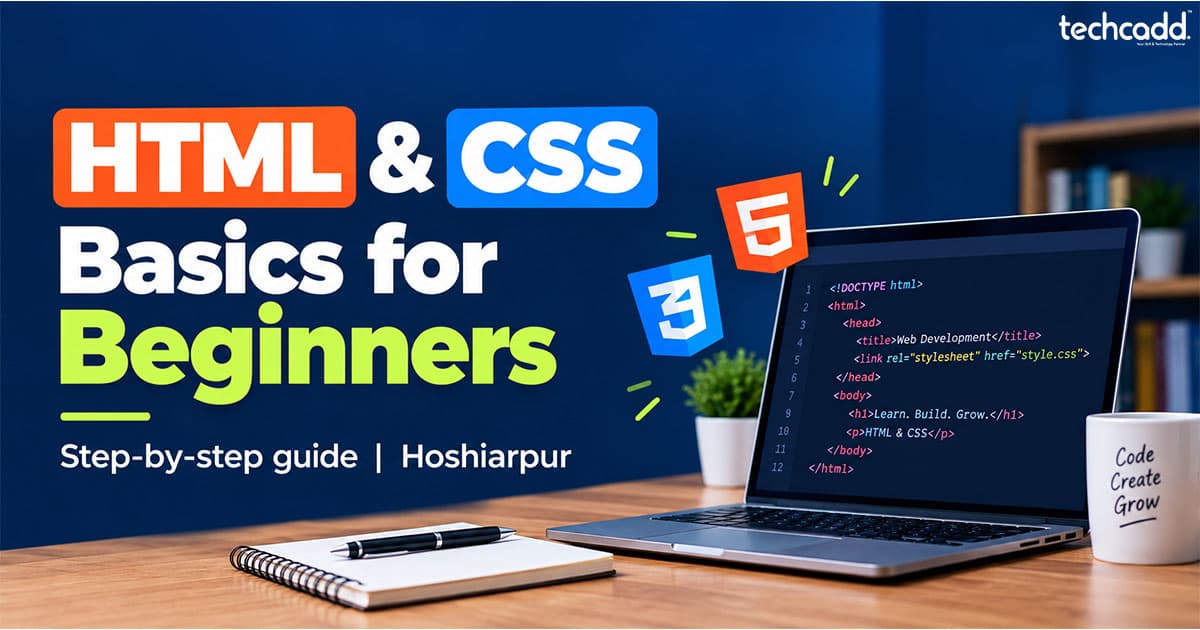
Where Do You Actually Start with Web Development?
Ask ten beginners in Hoshiarpur what they want to learn and you'll hear the same thing: "I want to build websites, but I don't know where to begin." One video says start with JavaScript, another says learn WordPress, a third one throws React at you on day two. No wonder it feels like too much.
Here's the calm truth. Every website you've ever opened, from a local coaching centre's page to a huge shopping site, is built on two things: HTML and CSS. Learn these properly and everything else in web development becomes easier to pick up.
At techcadd, this is where we ask every web development student to begin, and this guide follows the same path.
What Are HTML and CSS?
Think of a house being built.
HTML is the structure: the walls, doors, windows and rooms. It decides what is on the page: headings, paragraphs, images, buttons and links.
CSS is the interior and paint: colours, spacing, fonts and layout. It decides how everything looks.
Without CSS, a page still works, but it looks like a plain document from the 1990s. Without HTML, there's nothing to style. You need both, and they're designed to work together.
Is This Suitable for Complete Beginners?
Yes. HTML and CSS are not programming languages in the strict sense. There are no complicated calculations or logic to memorise. You write instructions, refresh the browser, and see the result immediately.
You don't need a computer science degree or any previous coding experience. If you can type, save a file and use a browser, you can start. Class 12 students, diploma students, graduates and even people already working a job pick this up every year, and most of them are building simple pages within the first week.
How difficult is it? The basics are easy. The challenge is patience, because getting a layout to look exactly the way you imagined takes practice. That's normal, not a sign that you're slow.
What You Need to Get Started
The setup is smaller than most people expect:
A laptop or desktop. Any basic one works.
A browser. Chrome or Edge is fine.
A code editor. Download the free Visual Studio Code. Notepad works too, but an editor colours your code and catches small mistakes, which helps a lot when you're new.
No paid software, no internet-heavy tools. You can practise offline.
Your First HTML Page
Open your editor, create a new file and save it as index.html. Type this:
<!DOCTYPE html>
<html lang="en">
<head>
  <meta charset="UTF-8">
  <title>My First Page</title>
</head>
<body>
  <h1>Hello, Hoshiarpur!</h1>
  <p>This is my first web page.</p>
</body>
</html>
Now double-click the file. It opens in your browser, and you've just made a web page.
Understanding What You Just Wrote
Don't worry about memorising it yet. Just understand what each part is doing.
<!DOCTYPE html> tells the browser this is a modern HTML page. It always goes first.
<html> wraps everything on the page. The lang="en" part tells browsers and search engines the page is in English.
<head> holds information about the page that visitors don't see directly, like the page title that appears on the browser tab. The <meta charset="UTF-8"> line makes sure text, including special characters, displays properly.
<body> holds everything people actually see on the screen.
<h1> and <p> are tags for a main heading and a paragraph. Most HTML works like this: an opening tag <p>, your content, then a closing tag </p> with a forward slash.
A common beginner mistake is forgetting the closing tag. The page doesn't always crash when this happens, so the problem is easy to miss. If something looks strange, check your tags first. It solves more problems than you'd expect.
A Habit Worth Building from Day One
Indent your code, meaning add a small space before tags that sit inside other tags, like the <h1> inside <body> above. It feels like extra effort at the start. But when your page grows to a hundred lines, tidy code is the difference between fixing a bug in a minute and hunting for it for an hour.
Also, save often and refresh the browser after every small change. Beginners who write fifty lines before testing usually end up confused about what broke. Write a little, check it, then move on.
You now have a working page and an understanding of how it's built. In the next part, we'll look at the most useful HTML tags (links, images, lists), and then start giving your page some colour and style with CSS.
The HTML Tags You'll Use Almost Every Day
HTML has over a hundred tags, but you don't need all of them. A handful covers most of what you'll build in your first few months.
Headings and Paragraphs
Headings run from <h1> to <h6>. Use one <h1> per page as the main title, then <h2> and <h3> for sections under it. Don't pick a heading just because it looks bigger. Search engines and screen readers use headings to understand your page's structure, so the order matters.
Links
<a href="https://www.example.com">Visit our website</a>
The href tells the browser where to go. The text between the tags is what people click.
Images
<img src="classroom.jpg" alt="Students learning web design in Hoshiarpur">
Images don't need a closing tag. The alt text describes the picture for people who can't see it and helps Google understand it. Beginners skip it all the time, so make it a habit now.
Lists
<ul>
  <li>HTML</li>
  <li>CSS</li>
  <li>JavaScript</li>
</ul>
Use <ul> for bullet points and <ol> for numbered lists. Each item goes inside its own <li>.
Div and Span
A <div> is an empty box that groups other elements together, and you'll use it constantly for layouts. A <span> does the same for a small piece of text inside a line. They look plain at first, but they become powerful once CSS enters the picture.
Now Let's Make It Look Good: CSS Basics
Right now your page is black text on a white background. CSS fixes that.
CSS works with a simple pattern: pick what you want to style, then say how.
h1 {
  color: darkblue;
  font-size: 36px;
}
Here, h1 is the selector (what to style). color and font-size are properties (what to change). darkblue and 36px are values (how to change it).
How to Add CSS to Your Page
There are three ways, but one is best for beginners.
Inline CSS goes inside the tag itself. It works, but gets messy fast.
Internal CSS goes inside a <style> tag in your page's head.
External CSS lives in a separate file, usually style.css, linked from your HTML. This is what professionals use, so start with it.
Create a file called style.css in the same folder as index.html. Then add this line inside the <head> of your HTML:
<link rel="stylesheet" href="style.css">
Now anything you write in style.css will change your page. Try it:
body {
  background-color: #f4f4f4;
  font-family: Arial, sans-serif;
}

h1 {
  color: #1a3c6e;
}

p {
  color: #333333;
  line-height: 1.6;
}
Refresh your browser. Same content, completely different feel. That moment, when a plain page suddenly looks designed, is usually when students get hooked.
Colours, Fonts and Spacing
Colours can be written as names (red), hex codes (#1a3c6e) or RGB values. Hex codes give you far more control. Free tools like a colour picker show you the code for any shade you like.
Fonts need a fallback. font-family: Arial, sans-serif; means "use Arial, but if it's unavailable, use any plain sans-serif font." It keeps your page readable everywhere.
Line height is a small detail with a big effect. Setting line-height: 1.6 gives text room to breathe, and long paragraphs become much easier to read.
Classes: Styling One Thing Without Touching Everything
What if you want only some paragraphs to look different? That's where classes come in.
In HTML:
<p class="highlight">Admissions are open this month.</p>
In CSS:
.highlight {
  background-color: yellow;
  padding: 10px;
}
The dot before highlight tells CSS you're targeting a class. You can reuse the same class on as many elements as you want. This one idea, giving elements names so you can style them separately, is the foundation of almost every real website.
A Mistake Almost Every Beginner Makes
You write the CSS, refresh, and nothing changes. Before panicking, check three things: Is the CSS file linked correctly? Is the file name spelled exactly the same? Did you save the file? Most "CSS not working" problems come down to one of these.
Also, don't copy code you don't understand. Change a colour, break something on purpose, then fix it. That's how the concepts actually stick.
Next, we'll cover the box model, layout with Flexbox, making your page mobile-friendly, and what to learn after HTML and CSS.
The Box Model: Why Your Spacing Never Seems Right
Every element on a web page is a rectangular box. Once you understand the layers of that box, most spacing problems stop being mysterious.
From inside to outside, the layers are:
Content: the text or image itself
Padding: space between the content and the border
Border: the line around the box
Margin: space between this box and the next one
.card {
  width: 300px;
  padding: 20px;
  border: 2px solid #1a3c6e;
  margin: 15px;
}
A simple way to remember it: padding is space inside, margin is space outside. Beginners mix these up constantly, so if a gap isn't appearing where you expect it, try the other one.
One more line saves a lot of headaches. Add this at the top of your CSS:
* {
  box-sizing: border-box;
}
Without it, a box with width: 300px and padding: 20px ends up wider than 300px, which breaks layouts in confusing ways. With it, the width you set is the width you get.
Flexbox: Putting Things Side by Side
Sooner or later you'll want elements in a row, like three course cards next to each other or a navigation bar. For years this was painful. Flexbox made it easy.
<div class="container">
  <div class="box">HTML</div>
  <div class="box">CSS</div>
  <div class="box">JavaScript</div>
</div>
.container {
  display: flex;
  gap: 20px;
  justify-content: center;
}

.box {
  background-color: #1a3c6e;
  color: white;
  padding: 20px;
}
Adding display: flex to the parent lines the children up in a row. gap adds space between them, and justify-content: center centres them. You'll also use align-items: center to centre things vertically. Learn these four properties well and you can build most layouts you'll ever need as a beginner.
Making Your Page Work on Mobile
Most people visiting a website in Hoshiarpur, or anywhere in India, are doing it on a phone. A page that looks great on your laptop but needs pinching and zooming on mobile will lose visitors in seconds.
First, add this line inside your <head>:
<meta name="viewport" content="width=device-width, initial-scale=1.0">
Without it, phones show a shrunken desktop version of your page. Then use a media query to adjust the design for smaller screens:
@media (max-width: 600px) {
  .container {
    flex-direction: column;
  }
}
This says: "when the screen is 600px wide or less, stack the boxes vertically instead of side by side." Check your work by pressing F12 in Chrome and clicking the phone icon. You'll see your page as it appears on different devices.
Mistakes Beginners Make (and How to Avoid Them)
Skipping the basics to jump to frameworks. Bootstrap and React are useful, but they're much harder when you don't understand what's underneath.
Using
<br>tags for spacing. Use margin and padding instead.Ignoring
alttext and proper headings. They matter for accessibility and SEO.Forgetting to test on mobile. Do it after every major change.
Only watching, never building. You can't learn this by watching tutorials alone. Type the code yourself.
What Should You Practise?
Reading about HTML and CSS only gets you so far. Build these in order:
A personal profile page with your photo, a short bio and links
A simple one-page website for a made-up business
A three-card layout using Flexbox
A mobile-friendly version of the same page
Each project takes a few hours and teaches more than a week of reading.
What Comes After HTML and CSS?
Once you're comfortable, the natural next steps are JavaScript to make pages interactive, then Git and GitHub to save and share your work. After that comes a framework like React, or a CMS like WordPress if your goal is client websites.
What can you do with these skills? Many students start with freelance projects, small business websites, internships or junior front-end roles. HTML and CSS are the foundation for all of them.
Start Where You Are
You don't need to be an expert before you begin, and you don't need to understand everything today. Open your editor, create a file and build something small. Every developer you admire once wrote a page that said "Hello, World."
If you're in Hoshiarpur and prefer learning with a mentor, practical projects and a step-by-step path instead of figuring it all out alone, the web development course at techcadd is built for exactly that. Come to a free demo class, see how it works, and decide for yourself.

Comments
Nothing here yet. Be the first to say something.