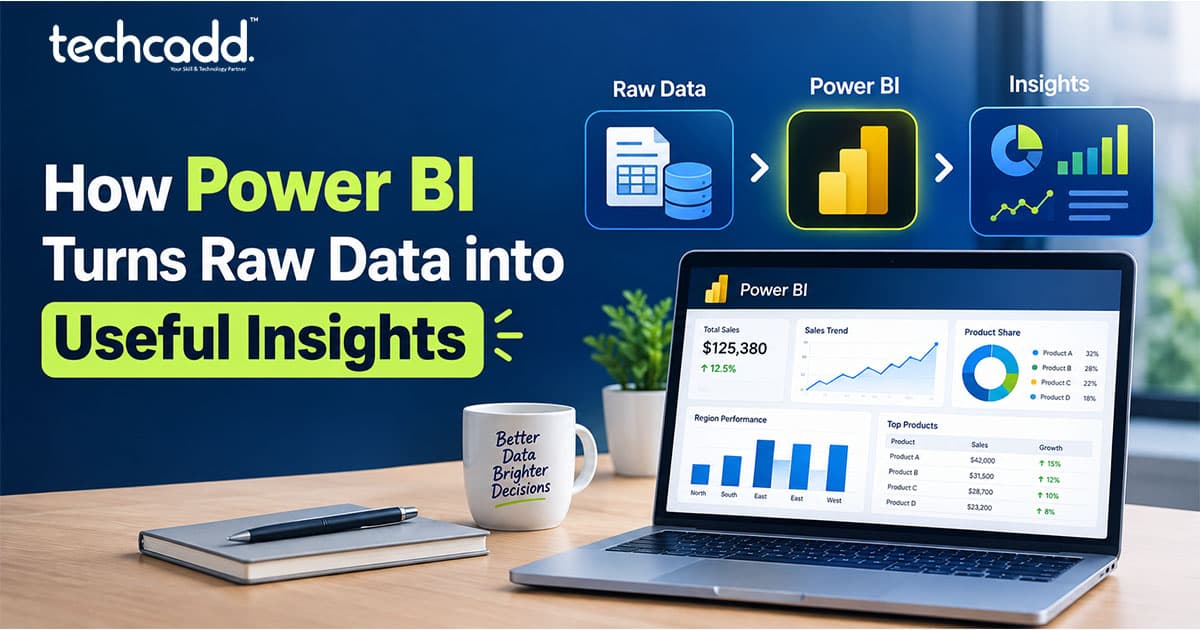
How Power BI Turns Raw Data into Useful Insights
Every business today collects data, whether it realizes it or not. Sales numbers, customer details, website visits, inventory records, employee performance — all of it gets stored somewhere, often across multiple spreadsheets, systems, and platforms. The problem isn't a lack of data. It's that most of this data sits unused, buried in messy spreadsheets that nobody has time to properly analyze.
This is exactly the gap Power BI was built to fill. It takes raw, scattered, often confusing data and turns it into clear, visual, easy-to-understand insights that actual humans can use to make better decisions — without requiring a data science degree to do it.
For students in Hoshiarpur exploring career options, or business owners trying to make sense of their own numbers, understanding how Power BI works isn't just a technical skill anymore. It's quickly becoming one of the most practical, in-demand tools across nearly every industry.
What Exactly Is Power BI?
Let's start simple. Power BI is a business analytics tool developed by Microsoft that helps you connect to different data sources, clean and organize that data, and then visualize it through interactive charts, graphs, and dashboards.
Think of it this way: if you have sales data scattered across three different Excel sheets, customer data in a separate system, and website analytics in yet another platform, Power BI can pull all of that together into one place and present it visually — showing trends, patterns, and insights that would be nearly impossible to spot by manually scrolling through spreadsheets.
The real value of Power BI isn't just that it makes data look nicer. It's that it transforms overwhelming amounts of raw numbers into something you can actually act on — quickly identifying what's working, what isn't, and where attention is needed.
Why Raw Data Alone Isn't Useful
Before understanding how Power BI helps, it's worth understanding why raw data, by itself, often fails to provide real value to a business.
Imagine a spreadsheet with 10,000 rows of sales transactions — dates, product names, quantities, prices, customer locations. Technically, everything you need to understand your business performance is sitting right there. But practically, no human can look at 10,000 rows and immediately spot meaningful patterns. Which products are actually driving the most revenue? Which regions are underperforming? Is there a seasonal trend affecting sales? The answers exist in the data, but they're invisible without proper analysis.
This is the fundamental problem Power BI solves. It doesn't just store data — it transforms it into visual formats that make patterns immediately obvious, even to someone without a statistics background.
How Power BI Actually Works: The Core Process
Understanding Power BI becomes much easier once you break it down into its core stages.
Stage 1: Connecting to Data Sources
Power BI can connect to numerous data sources — Excel files, SQL databases, cloud platforms, online services like Google Analytics, and many others. Instead of manually copying and pasting data between systems, Power BI pulls information directly from wherever it already lives.
Stage 2: Cleaning and Transforming Data
Raw data is rarely clean. It often contains duplicate entries, missing values, inconsistent formatting, or errors. Power BI's Power Query feature allows users to clean and reshape this data — removing duplicates, fixing formatting issues, combining data from multiple sources — before any analysis happens. This step is crucial, because messy data leads to misleading insights, no matter how good the visualization looks afterward.
Stage 3: Building Relationships Between Data
In real businesses, data usually comes from multiple related sources — a sales table, a customer table, a product table. Power BI allows users to define relationships between these different data sets, so information can be combined meaningfully. For example, connecting sales data with customer location data allows you to analyze which regions generate the most revenue.
Stage 4: Creating Visualizations
This is where Power BI becomes genuinely powerful. Instead of staring at rows of numbers, users can create bar charts, line graphs, pie charts, maps, and various other visual formats that make trends and patterns immediately visible. A well-designed chart can reveal in seconds what might take hours to notice in raw spreadsheet form.
Stage 5: Building Interactive Dashboards
Individual charts are useful, but Power BI's real strength lies in combining multiple visualizations into interactive dashboards. Users can click on one chart to filter data across the entire dashboard, drill down into specific details, or compare different time periods, all within a single, unified view.
A Simple Example: Sales Data Transformation
Let's make this concrete with a relatable example. Imagine a business in Hoshiarpur selling products both online and in-store, tracking sales across multiple spreadsheets — one for online orders, one for in-store transactions, and another for customer information.
Without Power BI, understanding overall business performance means manually combining these spreadsheets, calculating totals, and trying to identify patterns through manual sorting and filtering — a time-consuming, error-prone process that often only happens occasionally, like at month-end.
With Power BI, all three data sources connect automatically. A dashboard shows total sales trends over time, breaks down performance by product category, compares online versus in-store performance, and highlights which customer segments are most profitable — all updating automatically as new data comes in, rather than requiring manual recalculation every time someone wants an updated view.
Key Features That Make Power BI So Effective
Beyond the basic process of connecting, cleaning, and visualizing data, several specific features explain why Power BI has become such a widely adopted tool across businesses of all sizes.
Interactive Dashboards
Unlike static reports or charts in a presentation, Power BI dashboards are interactive. Users can click on specific data points, apply filters, and drill down into details without needing someone to create a new report each time a different view is needed. This turns data exploration into something dynamic rather than fixed.
Real-Time Data Updates
Power BI can connect to live data sources, meaning dashboards update automatically as new data comes in, rather than requiring manual refreshes. For businesses tracking daily sales, website traffic, or operational metrics, this means decisions can be based on current information rather than outdated reports.
DAX (Data Analysis Expressions)
For more advanced analysis, Power BI uses a formula language called DAX, which allows users to create custom calculations — like year-over-year growth, running totals, or complex conditional metrics — that go beyond what raw data alone provides. While this does require some learning, DAX fundamentals are approachable even for those without a programming background.
Natural Language Queries
Newer Power BI features allow users to simply type a question in plain language — like "what were total sales in March" — and receive an instant visual answer, without needing to manually build a specific chart. This significantly lowers the barrier for non-technical users to extract insights independently.
Integration With Other Microsoft Tools
Since Power BI is developed by Microsoft, it integrates smoothly with Excel, SharePoint, Teams, and other commonly used business tools, making it easier to incorporate into existing workflows rather than requiring businesses to overhaul their entire tech setup.
Sharing and Collaboration
Dashboards and reports can be easily shared across teams, with appropriate access controls, allowing different departments to view relevant insights without needing to understand the technical details of how the data was processed.
Why Businesses Value Power BI So Highly
Understanding the features is useful, but the real question is why this translates into genuine business value.
Faster Decision-Making
Instead of waiting days or weeks for someone to manually compile reports, decision-makers can access up-to-date dashboards instantly, significantly speeding up how quickly a business can respond to trends, problems, or opportunities.
Reduced Manual Work
Automating the process of pulling, cleaning, and visualizing data eliminates hours of manual spreadsheet work that many employees previously spent on repetitive reporting tasks, freeing up time for actual analysis and strategic thinking.
Improved Accuracy
Manual data compilation is prone to human error — a wrong formula, a missed row, an outdated copy-paste. Automated Power BI dashboards reduce these errors significantly, since data flows directly from source systems rather than being manually re-entered.
Democratizing Data Access
Previously, meaningful data analysis often required specialized analysts or IT support. Power BI's relatively approachable interface allows non-technical employees — marketing teams, sales managers, operations staff — to access and understand relevant data independently, without needing to request custom reports from a technical team every time.
Identifying Patterns Humans Might Miss
Visual representation of large datasets often reveals patterns that aren't obvious in raw numerical form — seasonal trends, unexpected correlations, gradual shifts in customer behavior — that might otherwise go unnoticed until they become significant problems or missed opportunities.
Common Doubts About Learning Power BI
"Do I need to know programming or coding to use Power BI?"
Not for basic to intermediate use. Power BI's core functionality — connecting data sources, creating visualizations, building dashboards — is designed with a visual, drag-and-drop interface that doesn't require coding knowledge. Advanced features like DAX formulas do involve some learning, but they're far more approachable than traditional programming languages.
"Is Power BI only useful for large companies with massive datasets?"
Not at all. Even small businesses with relatively modest data — a few hundred sales transactions, a small customer list — benefit significantly from Power BI's ability to visualize trends and patterns that would otherwise require tedious manual analysis.
"How is Power BI different from just using Excel?"
While Excel is excellent for basic data management and simple analysis, Power BI is specifically designed for handling larger, more complex datasets from multiple sources, creating interactive dashboards, and enabling real-time data updates — capabilities that go well beyond what Excel alone typically handles efficiently.
"Is Power BI expensive to learn or use?"
Microsoft offers a free version of Power BI Desktop with substantial functionality, making it accessible for individuals and small businesses to start learning and using without significant upfront investment. Premium features and cloud-based sharing capabilities do involve costs, but the learning and basic usage barrier is genuinely low.
Who Actually Uses Power BI in the Real World
Understanding who benefits from Power BI helps clarify why it's become such a widely valued skill across career paths.
Business Analysts use it to track KPIs, identify trends, and support strategic decision-making across departments.
Marketing Teams use it to analyze campaign performance, customer behavior, and ROI across different channels.
Sales Teams use it to track pipeline performance, identify high-value customers, and forecast future sales trends.
Operations Managers use it to monitor efficiency metrics, inventory levels, and supply chain performance.
Finance Professionals use it to create financial dashboards, track budgets, and analyze profitability across different business segments.
Small Business Owners use it to get a clear, consolidated view of overall business health without needing a dedicated analytics team.
How Beginners Can Start Learning Power BIGetting started with Power BI doesn't require an overwhelming, all-at-once approach. A practical, step-by-step learning path makes the process far more manageable.
Step 1: Start With the Free Power BI Desktop
Download Power BI Desktop, which is free and provides full access to core functionality. This removes any cost barrier to beginning hands-on practice immediately.
Step 2: Practice With Simple, Familiar Data First
Rather than starting with complex business datasets, begin with something familiar — personal expense tracking, a small sample dataset, or basic sales data. This helps you focus on learning the tool itself without simultaneously wrestling with unfamiliar, complicated data.
Step 3: Learn Data Cleaning Before Visualization
It's tempting to jump straight into creating charts, but understanding how to clean and prepare data using Power Query first ensures your visualizations are actually built on accurate, reliable information.
Step 4: Start With Basic Visualizations
Begin with simple charts — bar graphs, line charts, pie charts — before attempting complex dashboards. Understanding when to use which type of visualization for different kinds of data is a foundational skill that takes practice to develop intuition for.
Step 5: Gradually Introduce DAX Formulas
Once comfortable with basic visualizations, start learning simple DAX calculations, gradually building toward more complex formulas as specific analytical needs arise, rather than trying to memorize every possible formula upfront.
Step 6: Build a Portfolio Project
Apply your learning to a real or simulated business scenario — analyzing a local business's sales data, tracking a personal project's metrics, or recreating dashboards based on publicly available datasets. This practical application solidifies learning far more effectively than passive tutorial-watching alone.
A Realistic Example: A Student Learning Power BI
Consider a student in Hoshiarpur studying business or commerce, wanting to build practical, job-relevant skills alongside their degree.
They start by downloading Power BI Desktop for free and practicing with a sample dataset of a fictional retail business, learning to clean the data and create basic sales visualizations. As they grow more comfortable, they connect multiple related datasets — sales, customer information, and product details — learning how to build meaningful relationships between them.
Eventually, they approach a family friend's small business, offering to build a simple dashboard tracking their monthly sales and customer trends as a practice project. This real-world application, even at a small scale, gives them genuine portfolio experience they can showcase during internship or job applications, demonstrating practical skills rather than just theoretical knowledge.
Common Mistakes Beginners Make While Learning Power BI
Jumping straight to advanced features — Attempting complex DAX formulas or intricate dashboards before understanding basic data cleaning and simple visualization principles often leads to confusion and frustration.
Ignoring data quality — Focusing entirely on making visualizations look impressive while neglecting to properly clean and verify the underlying data, leading to visually appealing but inaccurate insights.
Overcomplicating dashboards — Cramming too many visualizations onto a single dashboard, making it overwhelming and difficult to extract clear insights, rather than focusing on the most relevant, actionable metrics.
Not practicing with real or realistic data — Only following along with tutorials without applying skills to genuine or realistic business scenarios, which limits practical skill development.
Skipping the fundamentals of good data visualization — Choosing chart types based on preference rather than what actually best represents the specific data and insight being communicated.
Why Power BI Skills Matter for Students in Hoshiarpur
For students in Hoshiarpur exploring career paths in business, commerce, IT, or even marketing, Power BI represents a genuinely practical, in-demand skill that applies across numerous industries and roles.
Unlike highly specialized technical skills that might only apply to specific career paths, data visualization and analysis skills through tools like Power BI are increasingly relevant across marketing, finance, operations, sales, and general business management roles. This broad applicability makes it a particularly valuable skill for students who haven't yet committed to one narrow specialization.
Additionally, as more businesses — including local businesses in Hoshiarpur — begin recognizing the value of data-driven decision-making, students who can help analyze and visualize business data position themselves as genuinely valuable, whether pursuing traditional employment or freelance opportunities.
Where This Skill Is Heading
As businesses continue generating increasing amounts of data across various digital touchpoints, the ability to transform that raw data into clear, actionable insights becomes more valuable, not less. Power BI, along with similar business intelligence tools, continues evolving with more accessible features, including AI-assisted analysis that further lowers the barrier for non-technical users to extract meaningful insights independently.
For students building relevant skills now, this represents a genuine, long-term career investment rather than a temporary trend, given how fundamentally important data-driven decision-making has become across virtually every industry.
Final Thought
Power BI represents something genuinely valuable in today's data-heavy business environment: the ability to transform overwhelming, scattered raw data into clear, actionable insights that anyone — not just data scientists — can understand and use to make better decisions.
For students in Hoshiarpur looking to build practical, widely applicable career skills, understanding how to use Power BI effectively offers a genuine competitive advantage, opening doors across numerous industries where data-driven decision-making has become an expectation rather than an exception.
Starting with the fundamentals, practicing on real or realistic data, and gradually building toward more advanced capabilities provides a practical, achievable path to developing genuine expertise in a skill that continues to grow in relevance across the modern job market.



Comments
Nothing here yet. Be the first to say something.