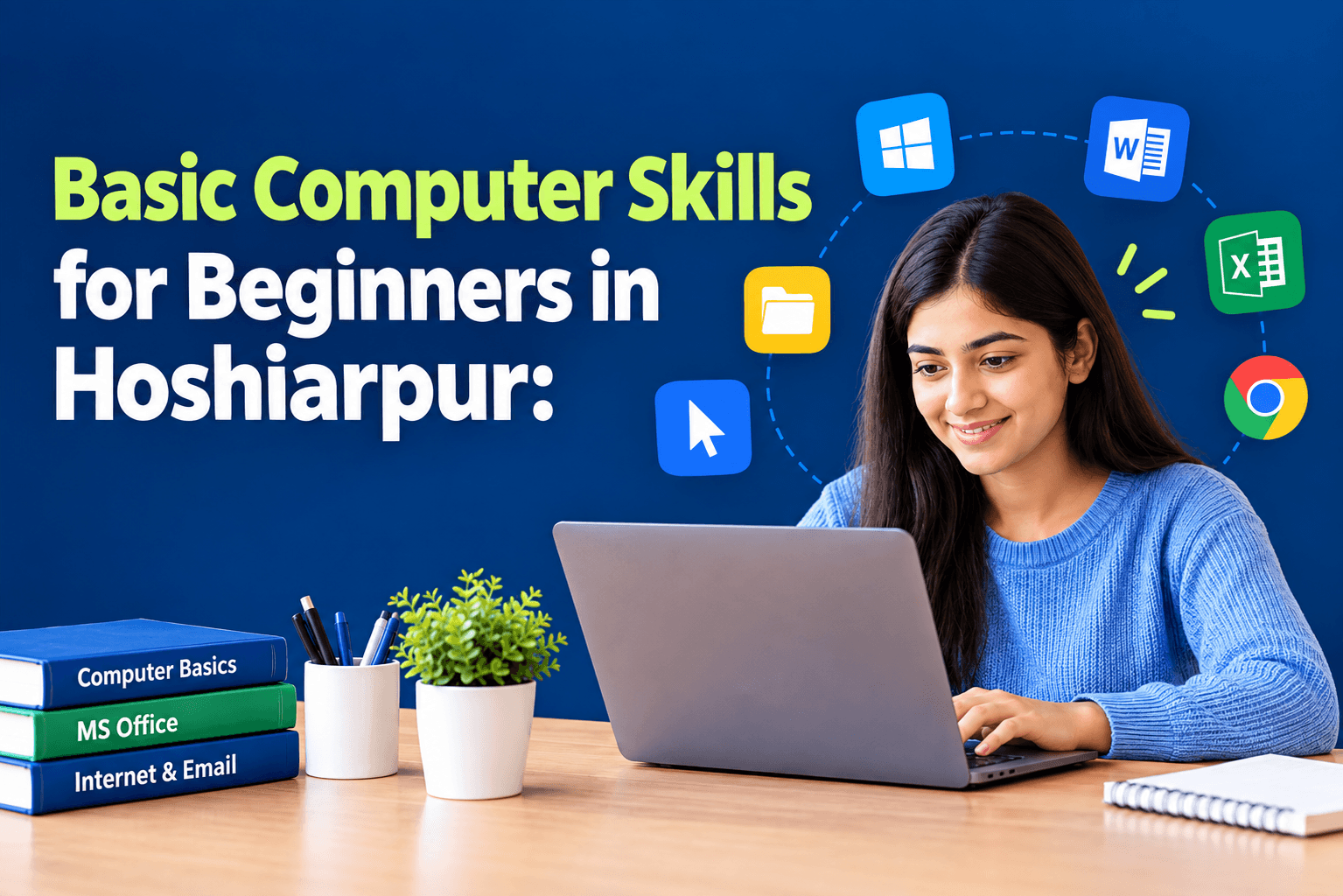
Basic Computer Skills for Beginners in Hoshiarpur: Where to Start
Part 1
Have you ever sat in front of a computer, mouse in hand, feeling a little unsure about where to even start? Maybe someone told you to "just open the file" or "just send the email," and you nodded along while quietly having no idea what they actually meant. If this sounds familiar, you're not behind. You're simply at the very beginning, and that's completely fine.
A lot of beginner guides jump straight into typing speed or Excel formulas, assuming you already know how to turn on a computer confidently, use a mouse smoothly, or understand what all those icons on the screen actually mean. This guide starts even before that, right from the absolute basics, for anyone in Hoshiarpur who wants to genuinely understand computers from the ground up.
Why Starting From Zero Is Completely Normal
There's a quiet assumption floating around that everyone today "already knows computers" because smartphones are everywhere. But using a phone to scroll Instagram is a very different skill from operating a desktop or laptop confidently. Many people, students, homemakers, shop owners, and job seekers alike, genuinely never had a proper chance to learn computer basics step by step.
If you're starting today, you're not late. You're simply starting now, and that's a perfectly fine place to be. The goal of this guide is to walk through the real starting point, the way someone patient would explain it in person, without making you feel embarrassed for not already knowing it.
Understanding the Computer Itself
Before touching any software, it helps to understand what you're actually working with. A computer system usually includes a few core parts: the monitor, which is the screen showing everything; the CPU or the main unit where processing happens; the keyboard, for typing; and the mouse, for pointing and clicking. If you're using a laptop, all of this is combined into one portable device.
Understanding these basic parts removes a lot of initial confusion. When someone says "restart your CPU" or "check your keyboard," you'll know exactly what they mean instead of feeling lost.
Getting Comfortable With the Mouse
This might sound almost silly to mention, but mouse control is a genuine skill that takes a little practice. Moving the cursor precisely, clicking the correct button, and double-clicking at the right speed are all small motor skills that feel awkward at first and become completely natural with practice.
A simple way to build comfort is to spend a few minutes just moving the mouse around, opening and closing a few icons, and getting a feel for how sensitive the movement is. This small, almost playful practice saves a lot of frustration later when you're trying to do something more specific, like selecting text or dragging a file.
Understanding the Desktop and Icons
The desktop is simply the main screen you see after the computer starts up. The small pictures on it, icons, represent programs, files, or folders. Double-clicking an icon usually opens whatever it represents.
Beginners often feel intimidated by the sheer number of icons and options visible on a typical desktop. A practical starting point is learning to recognize just a few essential ones: the Recycle Bin, where deleted files temporarily go; This PC or My Computer, which lets you browse files and folders; and any commonly used programs like a web browser or Word.
Turning the Computer On and Off Properly
This sounds obvious, but doing it correctly actually matters. Simply holding down the power button to force a shutdown, instead of using the proper "Shut Down" option, can sometimes cause files to get corrupted or settings to behave strangely over time.
Learning the proper way to start up, log in if needed, and shut down safely through the Start menu is a small habit that prevents bigger headaches later. The same goes for restarting a computer when it's running slowly or behaving oddly, which is often the simplest fix for small glitches.
Understanding Files and Folders
Here's a concept that trips up a lot of absolute beginners. A file is a single item, like a document, photo, or song. A folder is like a container that holds multiple files together, similar to how a physical folder holds paper documents in an office.
Learning to create a new folder, rename it clearly, and move files into it might feel like a small thing, but it's actually one of the most important habits for staying organized later. Without this basic understanding, files tend to pile up randomly, making it nearly impossible to find anything when you actually need it.
A Common Doubt: "Am I Too Old or Too Behind to Learn This Now?"
This doubt holds back more people than you'd expect, especially adults who feel embarrassed asking "basic" questions in front of younger, more comfortable users. Here's the honest truth: computer literacy has nothing to do with age. It has everything to do with practice and patient, clear teaching.
Plenty of people in Hoshiarpur, students, parents, shop owners, and working professionals, have successfully learned these basics well into adulthood, simply by starting patiently and practicing consistently. There's no cutoff age where this suddenly becomes impossible. The only real requirement is a willingness to sit with initial confusion for a little while before things start clicking.
Why This Matters for Beginners in Hoshiarpur
Whether you're preparing for a job, helping manage a family business, applying for government schemes online, or simply want to feel less dependent on others for basic tasks, these starting skills quietly unlock a lot of independence. Things that once required asking someone else for help, filling an online form, checking an email, saving a document, slowly become things you can handle confidently on your own.
Getting Comfortable With a Web Browser
Once you're comfortable moving around the desktop, the next natural step is learning to use the internet properly through a web browser, like Chrome or Edge. A lot of beginners already use a browser a little, perhaps to watch videos or check something quickly, but there's a difference between casual browsing and actually knowing how to use it well.
Learning to open a new tab, type a web address correctly, use the search bar effectively, and go back to a previous page without losing your place are small skills that make browsing far less confusing. It also helps to understand the difference between a search engine, like Google, and a specific website address. Typing a question into Google is different from typing a website's exact address, and beginners often mix these up at first.
Understanding Email Basics
Email often feels intimidating to absolute beginners, mostly because it involves several small steps that need to happen in the right order: logging in, writing a clear subject, typing the message, and attaching a file correctly if needed.
Start simple. Learn how to open your email account, read a received message, and reply to it. Once that feels comfortable, move on to writing a fresh email, adding a subject line, and attaching a document or photo. Many beginners skip learning to attach files properly and only discover the gap when they urgently need to send something important, like a form or a certificate.
Learning to Use a Keyboard Beyond Just Typing Letters
Beyond typing plain text, a keyboard has several small functions that make computer use noticeably smoother. Learning basic keys like Backspace and Delete for corrections, Enter for moving to a new line or confirming an action, and the Shift key for capital letters and symbols removes a lot of unnecessary fumbling.
As you grow more comfortable, a few simple shortcuts become genuinely useful: Ctrl+C to copy, Ctrl+V to paste, and Ctrl+Z to undo a mistake. These small shortcuts save time constantly once they become second nature, though there's no pressure to memorize all of them immediately. A few, learned well, make a noticeable difference early on.
Introduction to Basic Software: Word, Excel, and PowerPoint
Once you're genuinely comfortable with the computer itself, the browser, and basic file handling, it's time to get a gentle introduction to the core software most jobs and daily tasks require.
MS Word is used for writing and formatting documents, things like letters, applications, and simple reports. As an absolute beginner, start with opening a blank document, typing a simple paragraph, and learning to save it properly with a clear file name.
MS Excel is used for organizing numbers and simple calculations, like a basic list of expenses or a small table of information. Beginners should start by typing data into cells, understanding rows and columns, and trying one or two simple formulas, like adding numbers together.
MS PowerPoint is used for creating slides, often for presentations. A good starting point is opening a blank presentation, adding a title slide, and trying to insert a simple text box or image.
None of this needs to happen quickly. Spending a few calm, unhurried sessions with each program, just exploring and trying small things, builds comfort far better than rushing through a tutorial checklist.
Understanding Saving and Storing Your Work
One habit that trips up almost every beginner at some point is forgetting to save work regularly, only to lose it due to a sudden power cut or an accidental closed window. Learning to save a file properly, giving it a clear name, choosing where it's stored, and saving frequently while working, prevents this frustrating and completely avoidable experience.
It's also worth understanding the basic idea of storing files online, using something like Google Drive, so your work isn't only sitting on one device. If that device has a problem, your files are still safe elsewhere. This doesn't need to be mastered immediately, but even a basic awareness helps beginners avoid losing important work.
Common Mistakes Absolute Beginners Make
Mistake 1: Being afraid to click and explore
Many beginners move the mouse so cautiously, afraid that clicking the "wrong" thing will break something. In reality, most everyday actions are easily reversible. A little confident exploration, especially with low-stakes tasks, builds comfort far faster than overly cautious hesitation.
Mistake 2: Skipping the basics to "jump ahead"
Some beginners rush straight into typing documents or using Excel without first getting comfortable with simple mouse control, file handling, and navigation. This often creates confusion later, since these basic skills quietly support everything else.
Mistake 3: Not saving work properly or often enough
As mentioned, losing unsaved work is a frustrating but entirely preventable mistake. Building the habit of saving regularly early on avoids a lot of unnecessary stress later.
Mistake 4: Feeling embarrassed to ask questions
A lot of beginners hesitate to ask "simple" questions, worried about seeming behind. In reality, everyone starts somewhere, and asking early, specific questions saves far more time and frustration than silently struggling alone.
Is This Suitable for Complete Beginners?
Yes, this entire guide is written specifically for complete beginners, people who have genuinely never used a computer confidently before. There's no assumption of any prior knowledge here. Every concept, from understanding the mouse to opening an email, is meant to be a true starting point.
What matters most at this stage isn't speed. It's patient, hands-on practice, repeated enough times that actions which currently feel unfamiliar and slow eventually become smooth and automatic.
What Should You Learn First?
If you're starting completely from scratch, here's a sensible, beginner-friendly order:
Understanding the computer's basic parts and turning it on and off properly
Mouse control and desktop navigation, getting comfortable moving around
Files and folders, understanding how to organize your work
Basic keyboard use, including a few essential shortcuts
Web browser basics, searching and navigating confidently
Email basics, sending, receiving, and attaching files
Introduction to Word, Excel, and PowerPoint, one at a time, without rushing
This order builds a stable foundation step by step, so later skills feel like a natural continuation rather than an overwhelming jump.
How This Applies to Real Life in Hoshiarpur
Think about the everyday situations where these basic skills quietly matter. A parent trying to fill out an online form for their child's school admission. A shop owner wanting to maintain a simple list of customer orders instead of scattered paper notes. A job seeker needing to type and send a resume for the first time without asking a cyber café operator to do it for them.
None of these situations need advanced technical knowledge. They need exactly the basics covered in this guide: comfort with the mouse and keyboard, understanding files and folders, knowing how to use a browser and email, and a gentle familiarity with Word, Excel, and PowerPoint. Once these basics feel natural, a surprising number of everyday tasks become things you can simply handle yourself, without depending on someone else.
This kind of independence matters a lot in a city like Hoshiarpur, where many essential services, admissions, government schemes, job applications, bill payments, are steadily moving online. Being comfortable with a computer isn't just a bonus skill anymore. It's quietly becoming a basic life skill, much like being able to read a form or sign your name.
How Difficult Is It, Really?
Here's the honest, reassuring truth: these basics are genuinely some of the easiest computer skills to learn, as long as you approach them patiently and practice consistently. There's no complicated theory, no difficult math, and no need to memorize long lists of commands.
The real challenge for most beginners isn't the material itself. It's the initial nervousness, the fear of clicking something wrong, or the embarrassment of not already knowing something that seems "obvious" to others. Once that initial hesitation fades, usually within the first few sessions of calm, guided practice, progress tends to happen quickly and naturally.
Do You Need Previous Experience?
No previous experience is needed at all, and that's genuinely the entire point of this guide. Whether you've never touched a computer before or you've used a smartphone extensively but feel unsure about a full computer, you can start exactly from this point.
What helps most isn't prior exposure but patience with yourself. Give yourself permission to move slowly, repeat small actions a few times, and ask questions without feeling self-conscious. Everyone who is confident with computers today once sat exactly where you're sitting now.
What Can You Actually Do After Learning These Basics?
Once these foundational skills feel comfortable, a genuine sense of independence and confidence tends to follow:
Handling everyday digital tasks yourself, like filling online forms, checking emails, or saving important documents
Feeling prepared for further learning, since these basics are the foundation for typing practice, MS Office skills, and even more advanced computer courses later
Improving job readiness, since even entry-level roles today often expect basic computer comfort
Supporting family or business needs, like helping maintain simple records or communicating professionally through email
Reducing dependency on others, for tasks that once required asking a friend, child, or cyber café operator for help
Notice that these benefits aren't about becoming a "computer expert." They're about gaining genuine, practical independence in everyday digital life.
Will This Skill Actually Help Your Career?
Yes, very much so, even at this foundational level. Almost every job today, regardless of the field, expects at least basic computer comfort. Being able to confidently handle a mouse and keyboard, navigate files, send a proper email, and open simple documents is often an unspoken requirement, even for roles that don't look technical at all.
Starting with these fundamentals also makes every future skill easier to pick up, whether that's typing practice, MS Office certification, or eventually something more advanced like digital marketing or basic data entry work.
A Few Honest Thoughts to Wrap This Up
If you're reading this because you've felt a little lost or hesitant around computers, know that this feeling is far more common than it seems, and it's completely fixable with patient, steady practice. Nobody is born knowing how to use a mouse confidently or send a proper email. These are learned skills, just like reading or writing, and they come with time and repetition.
Start small. Get comfortable with the mouse and keyboard first. Learn to organize your files. Slowly move into browsing, email, and the basic software most tasks require. There's no need to rush through all of this in a single week.
For beginners in Hoshiarpur taking their very first steps with computers, this foundation, built patiently and practiced consistently, opens the door to far more independence, confidence, and opportunity than it might seem like right now.
Comments
Nothing here yet. Be the first to say something.